Your profile
Your profile lets you personalise how Tickiti looks and behaves for you. Changes take effect immediately and apply only to your own account.
To open it: click your account menu (top-right corner) → Settings → Profile in the left sidebar.
User info
The top card shows your name, email address, and any roles assigned to your account (for example Admin, Staff, or CRM access). This information is read-only; contact an administrator to change your name or roles.
Security
Click Change password to update the password you use to sign in. You must enter your current password before a new one will be accepted.
Preferences
When format
Controls how dates are displayed across all tickets — in the ticket list, inside open tickets, and anywhere else a “when” appears.
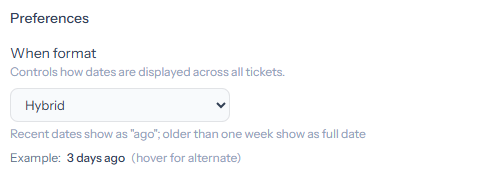
- Period since — dates always display as a running count, for example 3 hours ago or 2 days ago. Best when you care most about how fresh a ticket is.
- Hybrid (default) — recent dates (less than one week old) show as ago, while older dates show as a full date such as 4 Jun 2025. A practical balance for most support queues.
- Long — dates always show as a full calendar date regardless of age, for example 4 Jun 2025. Useful when you need the exact date at a glance without hovering.
Hovering over any date in a ticket shows the alternate representation — so if your format is Hybrid you can hover to see the exact date on a recent ticket, or the relative age on an older one.
The Example line below the dropdown gives a live preview using a fixed sample date, so you can see what your chosen format looks like before saving.
Quick actions
When Use quick actions is enabled, common ticket transitions appear as one-click buttons in the composer rather than requiring you to set each attribute field individually. Turning this off reveals all attribute fields directly at all times.
With quick actions on, two sub-options become available:
- Smart attributes (experimental) — shows attribute fields (status, queue, assignee, and so on) selectively based on the current quick action state rather than always showing every field.
- Post immediately on quick action (experimental) — clicking a quick action posts the change straight away, without a separate Send step, when all required inputs are already filled in.
Technical
Show ticket system info in response header — when enabled, the Ticket ID and Response ID appear inside each response header. Useful when cross-referencing tickets with logs or raising support issues with your administrator.