Ticket status and priority
Two of the most-changed properties on any ticket are its status and its priority. Both are set in the right-hand Manage panel while you have a ticket open or while you are responding.
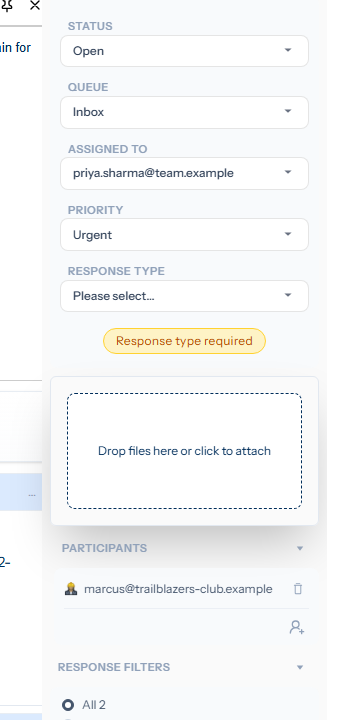
Status
The status describes what state the ticket is in:
- Open — active work in progress.
- On hold — waiting on something external (a customer reply, a supplier delivery, a court date). When you set status to On hold, Tickiti requires an on-hold-until date; if you forget, the Send button is disabled with the hint On hold required. A nightly job reopens on-hold tickets when their date is reached and notifies the assignee with a
[reopened]subject tag, so you do not need to babysit the date manually. An on-hold ticket also reopens immediately if the customer responds — their reply auto-clears the on-hold state and routes the ticket back to active work, so you never miss a reply that arrives sooner than expected. - Closed — resolved. Closed tickets disappear from the active perspectives but remain searchable.
Priority
Priority is one of four levels:
- Urgent — revenue-impacting or time-critical. Urgent tickets assigned to you appear at the top of the For my attention perspective — see Using perspectives.
- High — meaningful customer impact, should not wait.
- Normal — the default for most tickets.
- Low — nice to have, fits in around everything else.
Setting them
Click the Status or Priority dropdown in the Manage panel and pick a new value. Changes take effect when you send the response (or save, when there is no body) — if you discard the draft, your status/priority edits are discarded with it. The change is recorded as part of the response itself, so the audit trail shows who changed what and when.
You can also use a quick action to set both at once. Move to support, assign to me for example might also bump priority to High.
Bulk changes
From the ticket browser you can select several tickets and apply a status or priority change to all of them in one step. The Manage panel switches to a multi-ticket mode and shows a uniform value where the selected tickets agree, or a blank where they differ; pick the value you want and apply. See Understanding the ticket browser for how selection works.
If two people are editing at once
If a colleague changes status or priority while you have your draft open, Tickiti shows a notice rather than silently overwriting either of you. See Concurrent editing for how to resolve the clash.