Understanding the ticket browser
The ticket browser is the main staff view in Tickiti. It has a perspectives and watchlists panel on the left, a search bar across the top, and the ticket list — one card per ticket — down the middle. This article walks through what each part of a card shows you, using Sole Provider Sales — our running-equipment example — for the data.
Whichever perspective is active — For my attention in the screenshot below — decides which tickets appear in the list and the order they are sorted in.
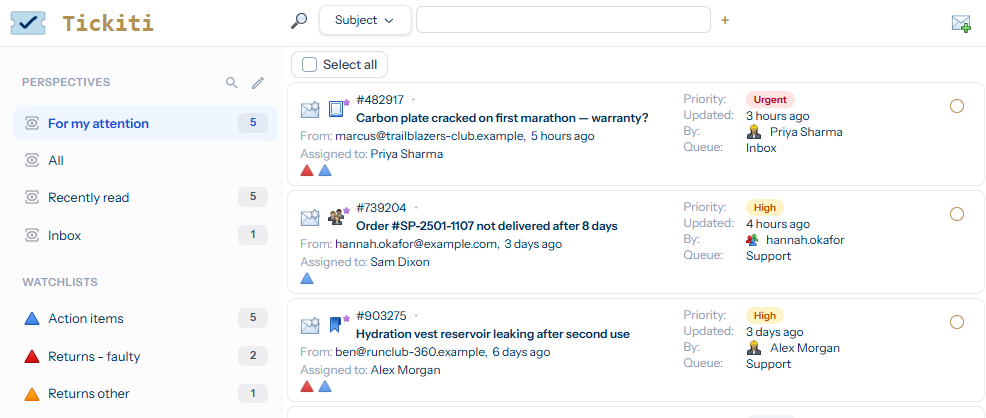
Anatomy of a card
Each card condenses a lot of information about a ticket into a single glance. Here is one card up close:

From left to right and top to bottom:
- Activity glyphs — small icons that show the ticket’s read/unread state, whether it is locked by another user, and what (if anything) is pulling it into your attention — assigned to you, retained, has unacknowledged tags for you, sat in an inbox you manage, or unread on a ticket you participate on. Watchlist membership appears alongside as coloured chips rather than a single glyph.
- Priority badge — coloured chip (Urgent red, High amber, Normal grey, Low faint).
- Number and subject — the ticket number (
#312663) followed by the customer subject line. - From and age — who raised the ticket and how long ago it was last updated.
- Assigned to — the staff member responsible right now (or Unassigned).
- Right-side meta — a compact summary repeating Priority, Updated, By (last responder — You, the customer name, or a staff colleague), and Queue.
- Selection circle on the far right — tick this to select the ticket for a bulk action (merge, delete, set priority, etc.).
Clicking versus selecting
Clicking anywhere on a card (other than the selection circle, search box, or other controls) opens the ticket. Ticking the circle selects it for a multi-ticket action without opening it. You can select several tickets at once and act on them as a batch.
Sorting and counts
Each perspective decides its own sort order — For my attention sorts by attention score, then priority, then last-updated. The count badge next to each perspective name in the left panel is the number of tickets that currently match that perspective.
What if a ticket I expect is missing?
- Switch to the All perspective to confirm the ticket exists at all.
- Check the search bar at the top of the list — an active filter narrows what you see.
- Confirm you have access to the ticket’s queue — perspectives only show tickets in queues you can view.