Hashtags
A hashtag is just a word with a # in front of it — like #followup or #vip — that you type into a ticket response. The moment you save the response, Tickiti quietly remembers that the ticket has been labelled with that word.
Think of them as sticky labels you write straight into your replies. You don’t have to set them up in advance or pick from a list — you simply invent a tag the first time you need it, and from then on it is available to everyone.
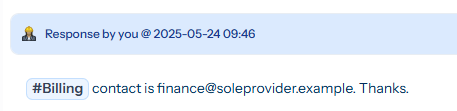
The hashtag appears as a small highlighted blue pill in the response so it is easy to spot at a glance.
Why would I use one?
Hashtags shine when you want to find a group of related tickets later, even though they have nothing else obviously in common. A few examples:
#followup— mark tickets you need to come back to, then pull them all up in one search later.#vip— flag your most important customers so the whole team can find them instantly.#network,#billing,#hardware— tag the underlying topic of a problem, so you can later see “everything that turned out to be a network issue” regardless of which queue it landed in.#refund-issued,#escalated,#bug-confirmed— record an outcome or a milestone so reporting and follow-up are easy.#project-falcon— group together every ticket that touches a particular project or rollout.
A good rule of thumb: if you ever think “I wish I could find all the tickets like this one”, a hashtag is the answer.
How do I add a hashtag to a response?
Just type it into your reply, exactly where it reads naturally:
Customer’s VPN drops every evening — looks environmental.
#network#followup
When you send the response, Tickiti reads the text, spots #network and #followup, and labels the ticket with both. That is the whole process — there is no separate field to fill in.
A few practical points:
- The tag can sit anywhere in the response — in a sentence, on its own line, or bunched together at the end. It makes no difference.
- You can put as many hashtags in one response as you like.
- Hashtags are recorded from staff responses. Words a customer types in their own reply are not picked up — this is deliberate, so customers cannot accidentally create hashtags.
What are the rules for the tag itself?
- Start with
#, then a letter or a number, then any mix of letters, numbers, hyphens (-) and underscores (_). So#customer-issueand#bug_123are both fine. - No spaces inside a tag.
#follow upwould only record the wordfollow. Use a hyphen instead:#follow-up. - Capital letters don’t matter.
#Network,#networkand#NETWORKare all treated as the same tag. - Minimum two characters.
#xis ignored. - A few things are deliberately not treated as tags, to avoid noise: plain numbers like
#128(this stops ticket numbers becoming tags), and colour codes like#0088cc.
I forgot to add a hashtag — can I add one afterwards?
Yes. Open the response, choose Edit, add (or remove) the hashtags in the text, and save. Tickiti re-reads the response and updates the tags to match:
- adding
#vipto an old response labels the ticket with#vip, - deleting
#followupfrom the text removes that tag from that response.
A short note is added to the response’s history so there is a record of what changed.
This makes editing genuinely useful, not just a way to fix typos. For example:
Keeping a “keyword list” on the first response
A popular pattern is to treat the first response on a ticket as a running index. As the ticket develops, edit that first response and keep a tidy line of hashtags at the bottom, for example:
#vip #network #escalated #refund-issued #project-falconWhenever something new happens on the ticket, you just edit that one line and add the relevant tag. The result is a single, at-a-glance summary of everything the ticket is “about” — and because they are real hashtags, that line doubles as your search index. You don’t have to hunt through every reply to remember whether a ticket was ever escalated; it is right there in the keyword list.
What is the “possible spelling” warning when I save?
If you type a hashtag that looks very close to one that already exists — say #netwrok when #network is already in use — Tickiti pops up a gentle warning to check you didn’t mean the existing one. You can either fix it or choose Use this hashtag anyway.
This is there purely to stop near-duplicates (#followup vs #follow-up vs #followups) quietly piling up and splitting your searches in two.
How do I search for tickets by hashtag?
In the ticket search box, choose the Hashtag search type, then start typing a tag. After a couple of letters, Tickiti suggests existing tags that start with those letters, so you can pick one rather than retyping it.

- You can add more than one hashtag to a search. Tickets that match any of them are returned, so
#vip+#escalatedfinds everything carrying either. - A hashtag search matches the whole tag: searching
#netfinds tickets tagged#net, not tickets tagged#network.
This is the quickest way to answer questions like “show me everything we have ever flagged #followup”. See Search and filtering for the full set of search types.
How do hashtags work with Perspectives?
Perspectives are saved, reusable views of your ticket list — and hashtags can be one of the conditions a perspective filters on. That lets you build a view once and have it stay up to date forever.
When building or editing a perspective, add a condition on the Hashtag field and pick the tag from the list. You can use it in a few ways:
- is
#vip— a permanent “VIP tickets” view. - is not
#resolved— hide anything already wrapped up. - contains
network— a looser match that catches#network,#network-latency,#networking, and so on.
You can combine several hashtag conditions, and mix them with all the other perspective conditions (queue, status, dates, and so on) to make rich, self-maintaining views — for example “open #vip tickets that haven’t been touched in 3 days”.
The difference between search and perspectives, in a sentence: search is for a quick one-off look right now; a perspective is for a view you want to keep and return to.
Where can I see all the hashtags in use?
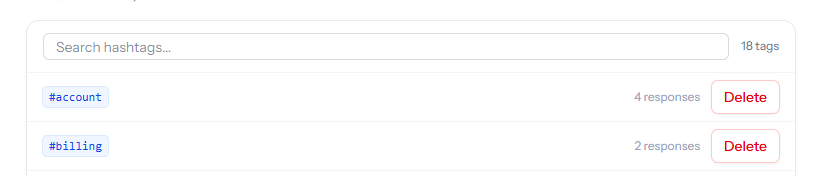
There is a Hashtags page under Settings that lists every tag currently in use along with how many responses use it. It is a handy way to see what conventions your team has settled on, and to spot near-duplicates that crept in. Administrators can also delete a tag from there, which removes it from searches everywhere (the #word text stays in the response — it just stops being treated as a tag).
Quick tips for good hashtags
- Be consistent.
#follow-upand#followupare two different tags. Agree on a house style and stick to it (the spelling warning helps here). - Be specific.
#networkand#billingare useful;#stuffand#thingare not. - Reuse before you invent. Let the autocomplete suggestions guide you toward tags the team already uses, rather than coining a new one each time.