Response types
Every response in Tickiti has a type. The type controls two things: who can see the response when reading the ticket, and who is notified when you send. Picking the right one is the difference between a helpful customer reply and an internal note posted where the customer can read it.
The three types
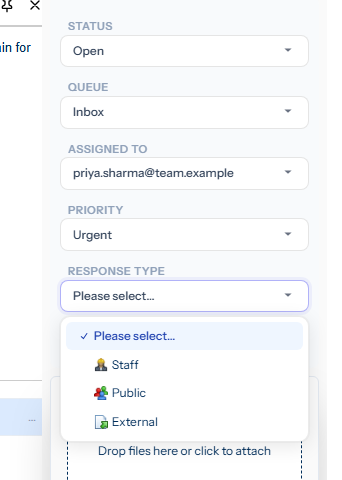
- Staff — an internal note. Visible only to colleagues; non-staff participants cannot see it on the ticket and are not notified. Use this for handover notes, investigation findings, or chat with a teammate about the ticket. Always available.
- Public — the ordinary customer-facing reply. Visible to everyone on the ticket; everyone is notified (the customer, any external participants, and staff watching the ticket). Use this for the back-and-forth conversation with the customer.
- External — same visibility as Public (everyone on the ticket can read it), but only the non-staff participants are notified. Staff already caught up on the ticket stay caught up — their unread state does not bump. Useful for a final note to the customer when you do not expect (and do not want to chase) a reply.
Visibility is enforced server-side: a Staff response is filtered out of the ticket page for any non-staff viewer. There is no setting that exposes it, and a customer cannot stumble onto it from the link in their notification.
Where you set it
The response-type selector lives in the right-hand Manage panel while the composer is open. Tickiti requires a type before you can send a response that has content; if you forget, the Send button is disabled with the hint Response type required.
Public and External need an external participant
Public and External are both disabled until the ticket has at least one external participant; the dropdown shows the tooltip Add an external participant first. This is a deliberate guard: with no customer on the ticket there is no audience for a public reply, so the only sensible type is Staff.
Staff is always available, including on a ticket you are drafting from scratch with nobody else on it.
Quick actions can pick the type for you
Users can configure quick actions that stamp a response type alongside other defaults — for example a Send to staff only action that sets Staff and clears the queue, or a Reply and close action that sets External and changes the status to Closed. When a quick action is applied the dropdown updates to match; you can still override by re-opening it.
Filtering by type when reading a ticket
The Response filters at the bottom of the Manage panel let you hide or show responses by type. On a long ticket with dozens of internal notes alongside the customer thread, hiding Staff responses gives you the customer-facing conversation only — useful when you are catching up on what the customer has actually been told.
Choosing the right type
- Will the customer ever read this? If yes, Public (or External). If no, Staff.
- Are you talking to a colleague about the ticket? Always Staff.
- Is this the last word, with the ticket about to close? External — the customer gets the message and your team is not pinged with a fresh unread.
For the surrounding workflow see Responding to tickets; for closing the ticket alongside a reply see Ticket status and priority.