Shared watchlists
Watchlists are hand-picked lists of tickets. Watchlists in the Staff Guide covers personal watchlists and adding tickets to them. This article focuses on the supervisor concern: how to set up a shared watchlist the whole team can use.
Personal versus shared
- Personal watchlists are visible only to their owner. Anyone on the team can create one for themselves.
- Shared watchlists are visible to every staff user. Tickets added by anyone show up in everyone’s view of the watchlist, and removed-by-anyone takes them out for everyone.
Only administrators can create or convert a watchlist to shared. This is on purpose — shared watchlists are a team-level affordance, not a per-user one.
The watchlist library lives at Settings → Watch lists. Each entry shows its name, an icon, a description and a Shared or Personal tag. Clicking Add opens the Add watchlist dialog:
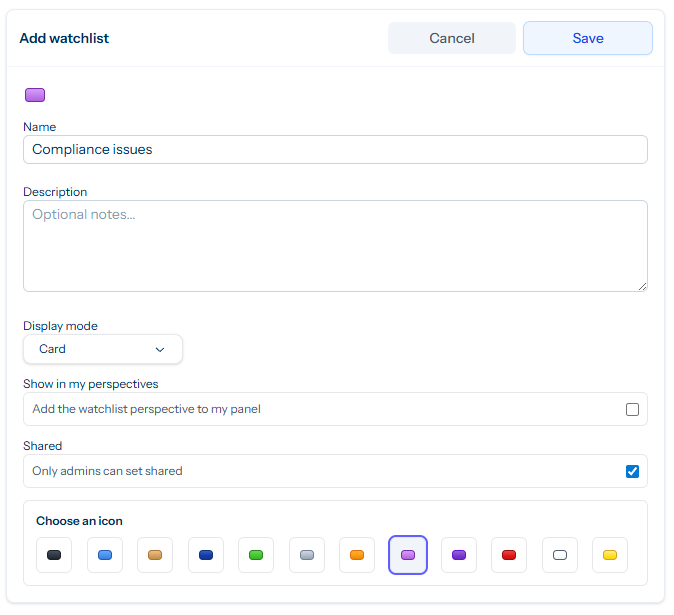
Creating a shared watchlist
- Open Settings → Watch lists.
- Click Add.
- Name — a short label (e.g. Warranty claims, Compliance issues).
- Description — optional notes explaining what the watchlist tracks.
- Display mode — Card or List, controlling how the watchlist’s auto-perspective renders the ticket list.
- Show in my perspectives — tick this to add the watchlist’s primary perspective straight to your own panel; otherwise the perspective exists but is not pinned for you. This only affects you, not other staff.
- Shared — tick to make the watchlist visible to everyone. The label Only admins can set shared appears next to the toggle; non-admins can read the field but cannot change it.
- Choose an icon — pick a colour swatch. The icon shows up next to every ticket in the watchlist and on the watchlist’s row in lists, so make it distinctive.
- Click Save.
Anyone can now add and remove tickets from the watchlist via the Add to watchlist button on a ticket.
Good shared watchlist patterns
- Warranty / claims — the warranty lead reviews this daily. Anyone who handles a warranty case adds it.
- Escalated by legal — anything legal has flagged for review. Limited contributors, broad audience.
- VIP customer X — a high-value customer’s active tickets, regardless of which agent picked them up.
- Carrier outage Y — tickets affected by a temporary courier disruption. Delete the watchlist when the outage ends.
The auto-perspective
Tickiti automatically generates a primary perspective named watch:<watchlist-name> for every watchlist. Pinning that perspective to your panel gives you a one-click view of the watchlist’s tickets in the regular ticket browser.
The auto-perspective filters out closed tickets, so a busy watchlist with hundreds of historic entries still shows a tractable open-only list day-to-day. Closed tickets remain in the watchlist’s membership; they are just hidden by the default view. To see them, set up a custom perspective for the watchlist that drops the closed-status filter (see Managing perspectives).
For a shared watchlist the auto-perspective is itself shared, so every staff user has a one-click route to the watchlist’s open tickets without each having to add the perspective manually.
Pruning shared watchlists
Shared watchlists accumulate over time. The auto-perspective hides closed tickets so the day-to-day view stays clean, but the membership list grows indefinitely. Build a habit:
- Each watchlist has an owner (the admin who created it). They are responsible for keeping the watchlist’s purpose clear and for retiring it when it is no longer needed.
- Retire watchlists when the project they tracked is done. Deleting the watchlist also removes its auto-perspective from everyone’s panels, which keeps the panel itself uncluttered.
- Rename to archive: ... if you want to keep the data around for reference. The auto-perspective will follow the rename.
Pairing watchlists with perspectives
The most powerful supervisor pattern combines a curated shared watchlist with a custom shared perspective built around it. The perspective can layer additional rules on top of watchlist membership — for example “in Warranty claims AND priority Urgent” — to surface a tighter slice. See Managing perspectives for the editor.