Attachments
You can attach photos, screenshots, order confirmations, or any other files that help explain your enquiry — both when you raise a ticket and when you reply to one.
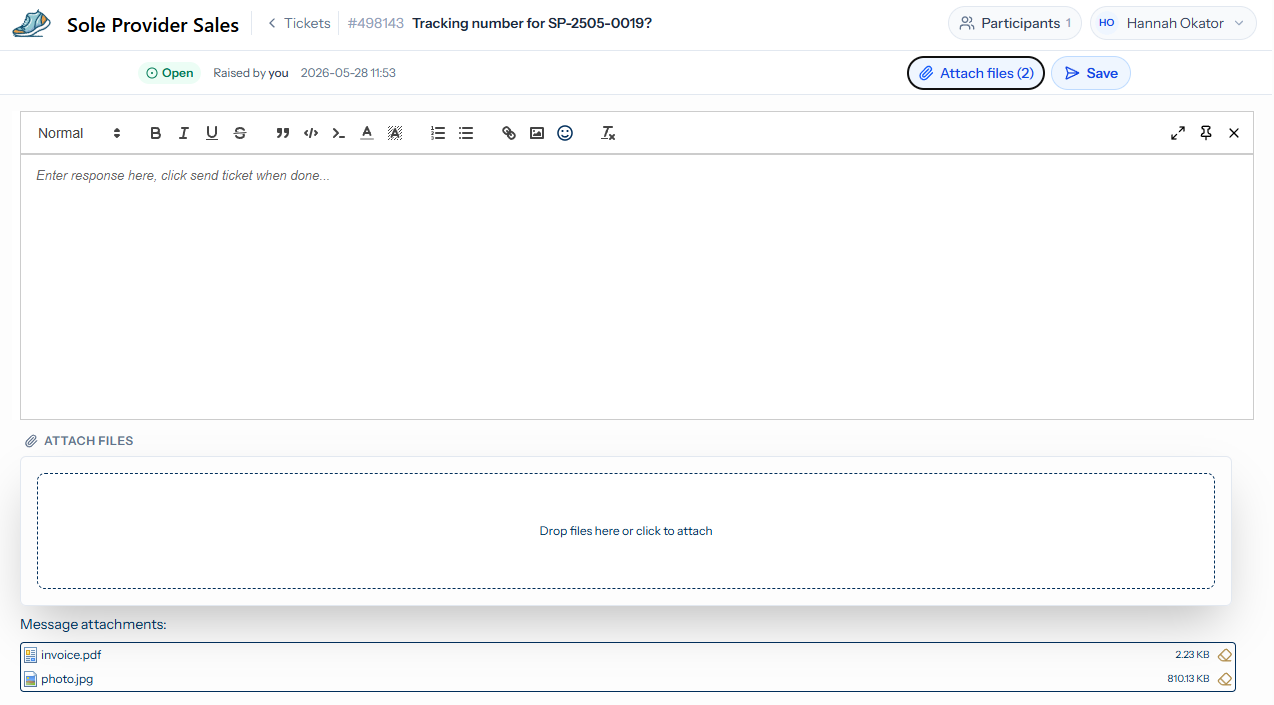
The screenshot below uses Sole Provider Sales as an example. The page your supplier uses will look similar.
Attaching files to a reply
When you open the reply box on a ticket, click the Attach files button in the top-right of the editor. An Attach files panel appears below the editor with a dashed dropzone, and any files you add are listed underneath as Message attachments. The button itself shows the running count once you’ve added one or more files:
To attach:
- Drag and drop one or more files from your file manager onto the dashed area, or
- Click the dropzone to open the file picker and select files from your computer.
You can also paste an image straight from your clipboard into the message body — for example after using the snipping tool. Pasted images appear inline in the message rather than in the Message attachments list, but they are sent through the same way.
Attaching files when raising a ticket
The support form shows the dropzone below the message body by default — no button to click first. Drag, drop, or click to add files in the same way.
Removing or replacing an attachment
Each file in the Message attachments list shows its name, size, and a small remove icon on the right. Click that icon to detach a file before submitting; the file is not sent if you remove it before pressing Save (or Submit on the support form). To replace a file, remove the existing one and add the new one in the same way.
Size and file-type limits
Each attachment has a size limit set by your supplier (commonly tens of MB). You can attach several files in one message.
The following file types are accepted by default:
- Documents — PDF, DOC/DOCX, XLS/XLSX, PPT/PPTX, TXT, RTF, CSV.
- Images — JPG/JPEG, PNG, GIF, WEBP, BMP, SVG.
- Archives — ZIP, 7Z.
For safety, executable and script files are not accepted — for example .exe, .msi, .bat, .cmd, .com, .scr, .ps1, .sh, .js, .vbs, .jar, .php, .dll, and similar. Office files with macros (.docm, .xlsm, .pptm) are also blocked. If you need to send a file in one of these formats, put it in a ZIP archive first.
Other extensions not in either list may be allowed by your supplier on request.
What happens after you submit
Your attachments arrive on the ticket alongside your message. The support team can preview common file types directly on the ticket and download anything else. Attachments are kept for the lifetime of the ticket and are removed when the ticket is purged according to the supplier’s retention policy.
Tips for useful attachments
- Photos of damaged goods — one wide shot showing the full item plus one close-up of the damage is more useful than five similar shots.
- Order confirmations — a screenshot of the order summary is usually enough; a full PDF is rarely needed.
- Screenshots of error messages — capture enough surrounding context (the URL bar, the time stamp) so the support team can reproduce or look it up.
- Big files — if a file is over the size limit, share a link from your cloud storage in the message body instead.