Monitoring team workload
As a supervisor your job is half doing the work and half making sure none of the work is dropping on the floor. Tickiti gives you two complementary tools for this: perspectives for dynamic, query-driven views of work in flight, and watchlists for hand-curated lists of specific tickets to keep an eye on.
The two tools, side by side
- Perspectives are dynamic. You define a set of conditions on the ticket attributes Tickiti tracks — queue, status, priority, assignee, originator, subject, content, retained, participating, watchlist membership, and the per-user For attention flag — and Tickiti shows you whichever tickets currently match. New matching tickets appear automatically; tickets that no longer match drop out. Use perspectives to monitor a class of work — “all open Support tickets at Urgent priority”, “tickets I am retaining that are not closed”.
- Watchlists are hand-picked. You add a specific ticket to a watchlist and it stays there until you take it out. Use watchlists for a small set of named cases you personally want to track regardless of their state — “the carbon-plate warranty cluster I’m co-ordinating”, “tickets connected to the Berlin marathon push”.
Rule of thumb: perspective for dynamic, watchlist for specific. If the answer to which tickets does this view show? is a rule on attributes, you want a perspective. If the answer is this list of tickets I picked, you want a watchlist.
Building a workload-monitoring perspective
Tickiti’s perspective conditions are about current state rather than time elapsed — you cannot say “updated more than 4 hours ago”, but you can ask “status, queue, priority, assignee, retained, For attention” questions. A useful starter set for a supervisor:
- Queue is Support, status is Open, priority is Urgent — the must-not-drop list for your team.
- Queue is Support, assigned to Unassigned — orphan tickets nobody has picked up yet.
- Status is On hold — the slow burn; useful to glance at once a week to make sure nothing has been parked and forgotten. (For tickets whose on-hold-until date has passed, the nightly job already reopens them automatically — see Ticket status and priority.)
- Retained by me, status is not Closed — the tickets you have personally flagged to keep an eye on.
See Managing perspectives for the mechanics of creating and sharing these.
Watchlists for specific oversight
Watchlists are best when you have a small bundle of related tickets you want to see together no matter where they are in the workflow. Each watchlist has an icon and colour so it shows up next to its tickets in the list and on the ticket itself. Shared watchlists are visible to everyone on the team; personal watchlists are visible only to you.
For example a running-equipment supplier might keep:
- Warranty claims (shared) — one watchlist any agent can add to. The warranty lead reviews it daily.
- Berlin marathon kit (personal) — tickets connected to the marathon push, only the project lead tracks this.
- Escalated by legal (shared) — anything legal flagged for our attention.
See Shared watchlists for the difference between personal and shared, and how to seed a shared one.
Impersonating to look at someone else’s view
The most useful supervisory trick: a perspective can be set to impersonate another user. The user-centric conditions in the query (For attention, Retained, Participating, Assigned to) evaluate as that user, so you see what their For my attention would look like, or which tickets they have retained, or what they are participating in — without leaving your account or asking them to share their screen.
Impersonation does not grant any extra access. You only see tickets you already have permission to view via your own queue permissions and participations — the impersonation only changes the point of view. If the impersonated user has a ticket on a queue you cannot view, that ticket will not appear in your impersonated perspective. The feature is for “show me what’s on Priya’s workload”, not “let me bypass my own permissions by pretending to be Priya”.
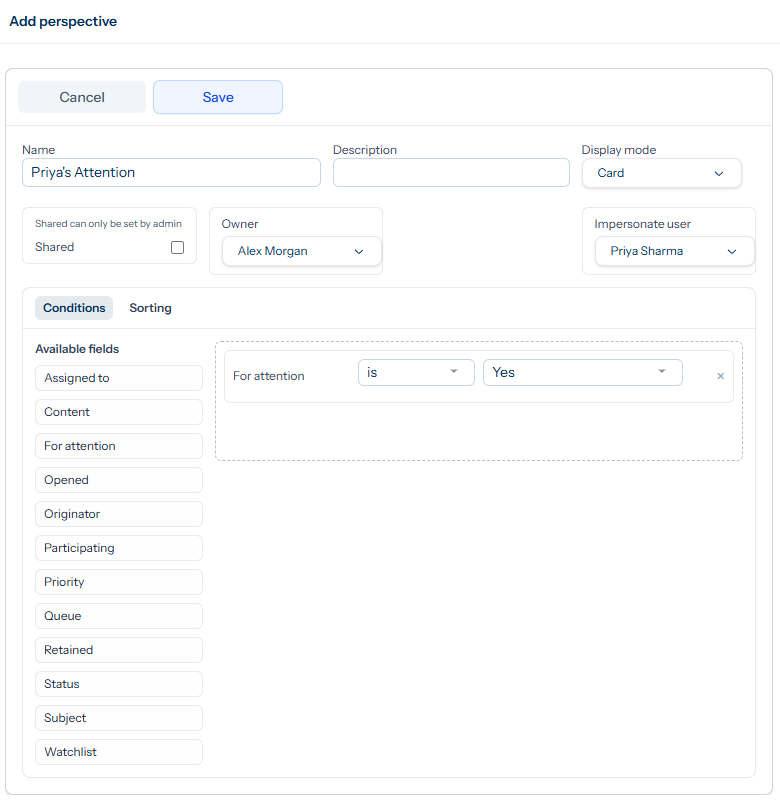
The example above is exactly that pattern: a supervisor (Alex Morgan) is creating a perspective named Priya’s Attention, impersonating Priya, with the condition For attention is Yes. The pinned perspective then shows whatever is currently on Priya’s For my attention — tagged-but-unacknowledged responses, urgent assigned work, retained tickets — in Alex’s own browser.
To create an impersonating perspective:
- Open the perspectives panel, click the pencil to enter edit mode, click the + on the bottom row, then click Add new.
- In the Add perspective dialog, fill in the name — e.g. Nathan’s attention.
- Set Impersonate user to the staff member you want to view as.
- Add the conditions you want to look at — For attention is Yes reproduces their For my attention view, or leave the conditions empty for the equivalent of their All.
- Save and pin it.
You now have a one-click view of that person’s queue. Useful for handover preparation, sickness cover and coaching reviews.
Using the two together
The most effective supervisor pattern combines them:
- A handful of impersonation perspectives for direct reports gives you a five-second sweep of who is doing what.
- A small set of workflow perspectives (urgent open in your queue, unassigned, on hold) keeps the team-level health visible.
- A few shared watchlists capture the named projects everyone is contributing to.
Together they answer the two supervisor questions you ask all day: “is the workload distributed sensibly?” and “is anything slipping through the cracks?”.