Assignment and queues
Two related concepts decide who handles a ticket:
- The queue — which team or part of the business owns the ticket.
- The assignee — the specific staff member responsible right now.
The two work together: the queue restricts who can be assigned, so you always pick the queue first.
Queues
A queue is a named bucket of tickets, usually mapped to a team or workflow. Inbox, Support, Development, Trade, Returns are typical examples. Each staff user has three independent permissions per queue:
- Contribute — sees tickets in this queue and can post responses on them. Without it the queue is invisible to that user.
- Manage — can take ownership of, reassign, change status/priority on tickets in this queue. Manage rights also make a user eligible to appear in the Assigned to dropdown for this queue.
- Delete — can permanently remove tickets in this queue. Usually restricted to a small group.
The default queue for inbound customer tickets is the one marked Inbox. From there, staff move tickets into the queue that owns them. See Queue configuration for how queues themselves are created and configured, and Queue permissions for who can do what.
Assignees
The assignee is one specific staff member — or Unassigned. When a ticket is assigned to you, it shows up in your For my attention perspective with a higher weight if its priority is Urgent (see Using perspectives). Reassigning to a colleague moves the ticket out of your For my attention view and into theirs.
Setting queue and assignee
Both live in the right-hand Manage panel of an open ticket. The order matters:
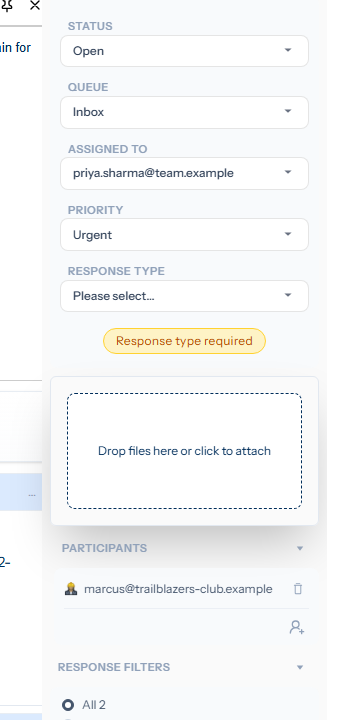
- Pick a Queue. The dropdown only shows queues you can view.
- Pick an Assigned to. The list is filtered to staff with manage rights on the queue you just chose; if you change the queue afterwards the assignee list refreshes. Until you have selected a queue the assignee dropdown shows Select a queue first.
Like other manage-panel changes, queue and assignee edits take effect when you send the response (or save, when there is no body). They are recorded as part of the response so the audit trail shows who reassigned, when, and what they wrote alongside.
You can usually skip the dropdowns altogether and use a quick action — Move to support, assign to me sets queue and assignee in a single click, often along with status, priority and response type.
Reassignment etiquette
- When you reassign to a colleague, leave a staff response explaining why you are passing it on and what you have already tried. Use a Staff response type so the customer does not see the handover note.
- When you take a ticket from a colleague, do the same in reverse so their For my attention reflects the change cleanly and your context is set up for them.
- Avoid bouncing tickets without notes; the audit trail without context is hard to follow weeks later.
Why a ticket might be invisible
If a colleague mentions a ticket and you cannot find it in your lists, the most common reason is that you do not have Contribute on the queue it is in. Queue permissions decide which queues appear in your perspectives and search results.
Being the assignee or a participant on a ticket gives you contribute access on that one ticket regardless of your queue permissions. So even if you do not have queue access to the queue the ticket sits in, an assignment or participation lets you open and contribute to it. Queue permissions are about which queues you can browse; assignment and participation are per-ticket grants that work alongside them.
The queue admin page (User admin in the user-menu dropdown) shows your permissions and is where an administrator can grant proper view access — see Queue permissions for the full picture.