Pinned responses
On a long ticket, the response that captures the decision — warranty approved, replacement on its way — can get buried under follow-up notes and audit lines. Pinning a response lifts it to the top of the conversation so anyone returning to the ticket sees it first.
Pinning is per-ticket. It does not save the response anywhere reusable; for that see Stock responses.
Pinning a response
Open the response actions (the kebab menu on the right of any response) and choose Pin response:
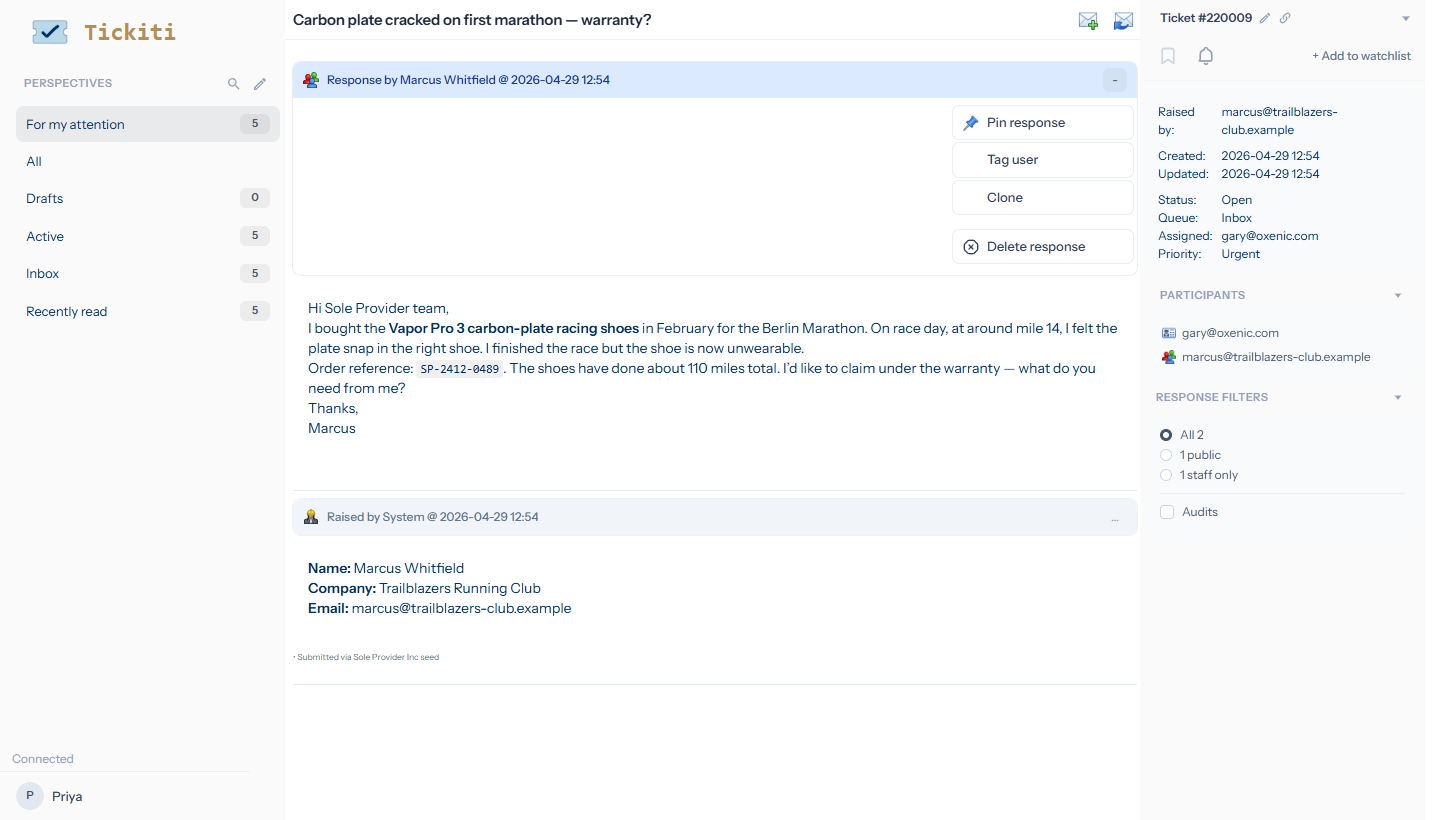
The response immediately gets an amber outline and floats to the top of the ticket. It stays in the chronological list as well — nothing is hidden — it just appears at the top so it is the first thing a colleague reads when they open the ticket.
Unpinning
The same menu offers Unpin response on a response that is already pinned. Use it once the conversation has moved on and the pinned message is no longer the headline.
Who sees the pin
The float-to-top behaviour is staff-only. Customers and external participants always see responses in chronological order — pinning is a staff convenience for keeping the important message visible to colleagues, not a way to highlight something to the customer.
Good candidates for pinning
- The decision response — the one that says this is what we have agreed to do.
- The handoff note when a ticket bounces between teams — the colleague taking it over should not have to scroll to find it.
- A reference to the customer’s order or contract that the rest of the ticket keeps coming back to.
Anything you find yourself re-typing on multiple tickets is a different problem — that is what stock responses are for.