Watchlists
Watchlists let you explicitly track individual tickets you care about over time. Unlike perspectives, watchlists do not use rules or filters — you add and remove tickets by hand.
They are ideal for grouping a set of important tickets together so a team can focus on them, with the option of keeping closed ones visible too via a custom perspective.
Adding a ticket to a watchlist
Watchlists are managed directly from the ticket browser. To add or remove a ticket:
- Select one or more tickets in the ticket list (tick the circle on the right of each card).
- Click + watchlist in the bulk-action bar that appears at the top.
- Pick an existing watchlist, or type a new name to create one.

The same menu has Remove from watchlist for taking tickets back off.
There are no automatic rules: tickets only appear in a watchlist if you explicitly add them, and they stay until you take them off.
Watchlists and perspectives
A watchlist is a collection of tickets. To actually see those tickets in a list, you use a perspective.
The auto-created perspective
When you create a watchlist, Tickiti automatically creates a perspective with the same name. That perspective:
- Shows every ticket currently in the watchlist.
- Hides closed tickets. Once a ticket is closed, it drops out of this perspective — though it stays in the watchlist itself.
- Inherits the watchlist’s sharing setting (private or shared).
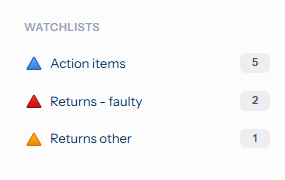
So every watchlist is immediately usable as a navigation view in the perspectives panel on the left.
Custom perspectives
You can also create custom perspectives that reference one or more watchlists. A custom perspective can drop the “not closed” filter so closed tickets stay visible, combine a watchlist with other criteria (for example: assignee or priority), or use a different layout while observing the same set of watched tickets. That lets a team track the same tickets in different ways without duplicating the watchlist itself.
When to use a watchlist
- Tracking specific tickets over long periods.
- Keeping visibility on tickets after they are closed (via a custom perspective — the auto-created one hides closed tickets).
- Manually curating a set of important or sensitive tickets.
- Sharing a focused set of tickets with a team via a shared watchlist.