Responding to a ticket
If a company you deal with uses Tickiti for their customer support and you have raised a ticket with them, you will receive a notification email whenever the support team posts a reply on the ticket. The email is your prompt to come back and respond.
The screenshot below uses Sole Provider Inc as an example. The page your supplier uses will look similar.
Open the ticket from the email
Every notification email includes a View ticket button. Clicking it opens the ticket in your browser — no password needed; the link contains a secure identifier that authenticates you. Always use this link rather than replying to the email itself: it keeps your reply attached to the ticket so the support team has the full history in one place.
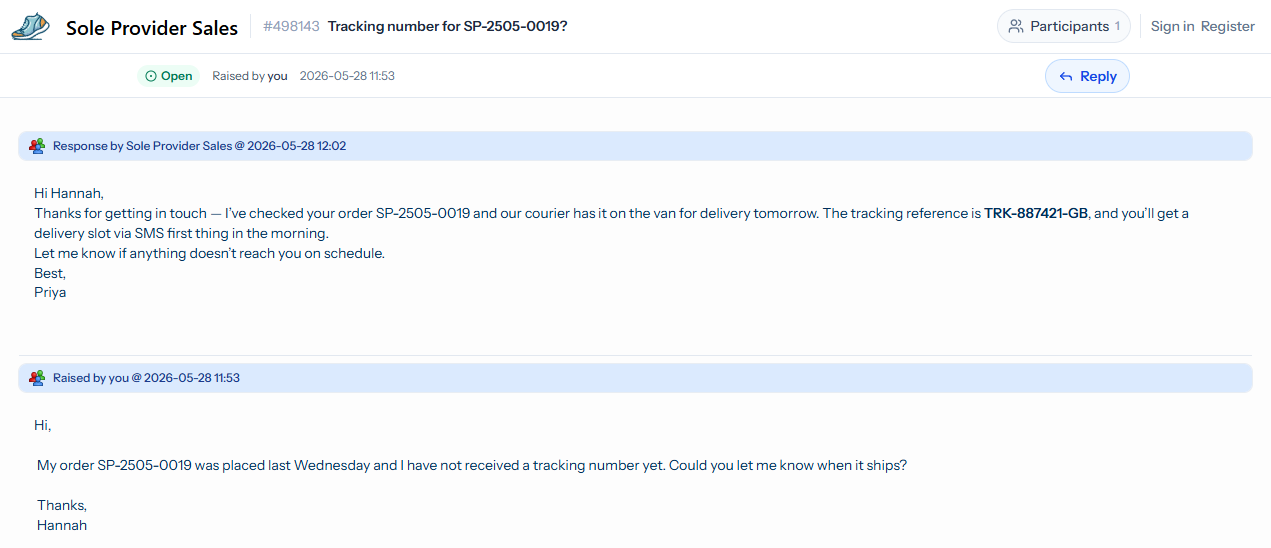
From here you can:
- Read the full conversation in date order, with the latest reply at the top and your original message below.
- See the current status of the ticket in the side panel, alongside the participants — think of participants as the cc list for the ticket.
- Click the Reply button to open a reply box.
Writing a reply
The reply box behaves like an email composer:
- Type your reply in the message area. The toolbar at the top lets you bold, italicise, link, or add bullet points.
- Drag any files you want to add into the attachments dropzone, or click it to pick from your computer.
- When you are ready, click Send. Your message is appended to the conversation immediately, and the support team is notified.
Adding more information later
You don’t need to wait for a reply before adding to the ticket. If you remember an extra detail or want to attach a photo after the fact, open the same View ticket link from any earlier notification and add another response.
What if the link does not open?
Some corporate mail systems strip or rewrite tracking links. If View ticket does not open the right ticket, just reply to the notification email to let the support team know — they will see your reply and can resend the link or open the ticket from their side. Bear in mind that the notification email only shows you a preview of the latest message; the full conversation lives on the ticket page, which is why the link is the normal route in.
What if I want to see all my tickets at once?
Register an account using the same email address you raised the ticket with. Once signed in, you can see all the tickets attached to your email in a single list. See Tracking your tickets for the details.