Escalations
Escalations are automatic notifications that fire when a ticket has been waiting longer than it should. They are configured at Settings → Escalations (in the Workflow section of the Settings menu) and require admin access plus the has_escalations plan capability.
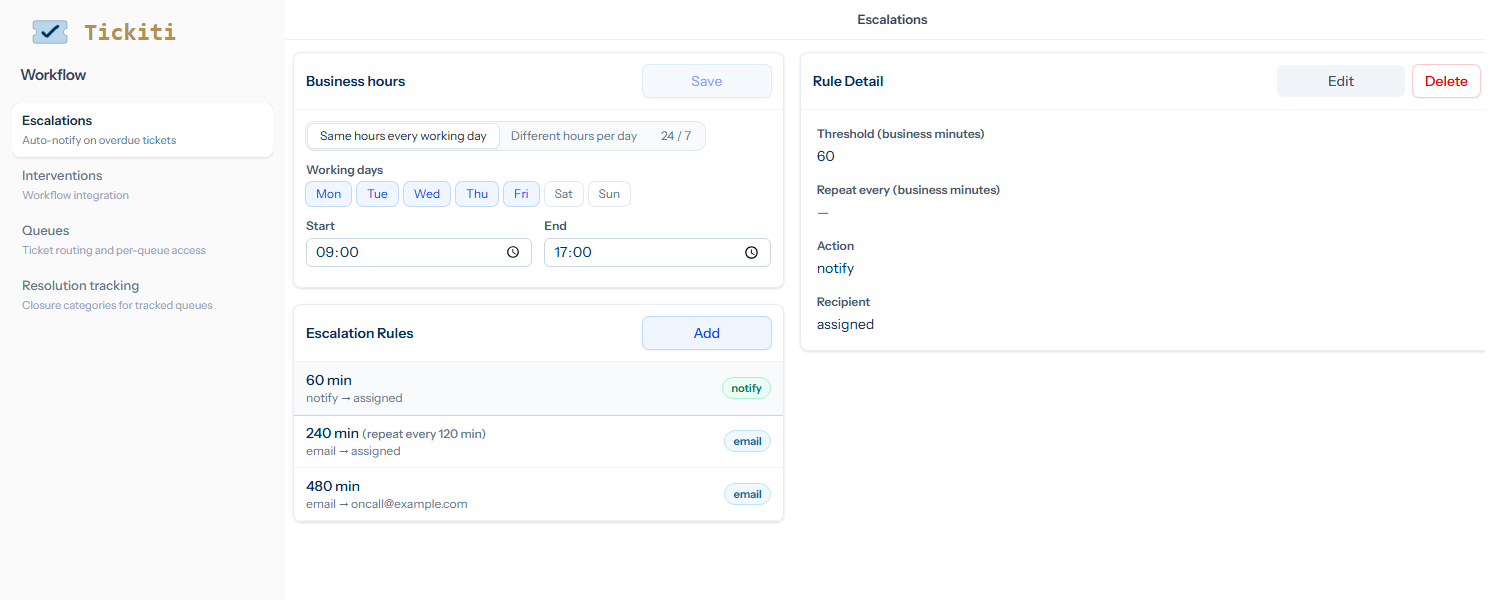
Two pieces
- Business hours — when the team is on the clock. Escalation timers only count business minutes, so a ticket raised at 5pm on Friday does not escalate over the weekend (unless you have configured 24/7 hours).
- Escalation rules — the conditions under which an escalation fires (after how many minutes, repeating how often, who gets notified, by what channel).
Configuring business hours
Three modes:
- Same hours every working day — pick which days are working days and one set of start/end times that apply to all of them.
- Different hours per day — tick each working day individually with its own start/end. Use this for split shifts or shorter Friday/Saturday hours.
- 24 / 7 — turns the calendar off entirely. Tickets are escalated around the clock, every day of the week. Useful for teams with continuous coverage.
Click Save on the Business hours panel when you are done; the button stays disabled until you make a change.
Adding an escalation rule
- Click Add in the Escalation Rules card. The right-hand pane switches to New Rule.
- Threshold (business minutes) — how many business minutes a ticket can wait before this rule triggers.
- Repeat every (business minutes) — if the ticket is still in scope after this many business minutes, the rule fires again. Leave empty for a one-shot rule.
- Action — Notify sends an in-app notification (and an email only if the recipient has email notifications turned on); Email always sends an email regardless of preferences.
- Recipient — an email address, or the special token
assigned. Withassigned, the notification goes to the ticket’s assignee; if the ticket is unassigned, it falls back to the inbox administrators of the ticket’s queue (see Queue configuration). The default for new rules isassigned. - Click Save.
What triggers an escalation
The escalation job runs on a schedule and looks at every open ticket whose most recent material response is from a non-staff participant (the customer or another external participant). For each such ticket it calculates how many business minutes have elapsed since that response.
Among the rules whose thresholds the elapsed time has crossed, only the highest threshold fires — not every rule below it. So if you have rules at 30, 60 and 120 minutes and a ticket has been waiting 100 minutes, only the 60-minute rule fires. This keeps escalation traffic proportional to how badly a ticket is overdue rather than amplifying it as more thresholds pile up.
If a rule has already fired on a ticket, it re-fires only when:
- The rule has a Repeat every value, AND
- That many business minutes have elapsed since the previous firing of this rule, AND
- No higher rule has fired in the meantime — once a ticket has been escalated to a higher level, the lower-level rules go quiet.
Each fire sends the ticket_escalation template, which you can customise under Templates.
Tuning escalations
- Start lenient. A 30-minute escalation looks great until everyone is drowning in emails. Begin with values that pass “is this actually useful?” and tighten if the team can keep up.
- Use assigned by default. The assignee is usually the right person; the inbox-admin fallback handles the unassigned case. Hard-coding an email is occasionally useful (a permanent escalation address for a critical queue) but adds a maintenance task when people change roles.
- Pair with a perspective. A perspective showing tickets that have received an escalation can be a useful supervisor view — you watch the escalation rather than depending on the email. See Managing perspectives.
If a ticket should never escalate
Escalation only fires when a ticket is Open. Putting a ticket On hold stops the timer; when the hold expires the ticket reopens and the timer restarts on its next non-staff response. See Ticket status and priority.