Drafts and autosave
Tickiti autosaves what you are typing in the response composer. You will not lose a half-written response by closing the tab, refreshing the page, or letting your laptop sleep.
Where drafts live
Every staff user has a built-in Drafts perspective in the left panel (see Using perspectives). It contains:
- New tickets you have started but not yet sent — created via the new-ticket button.
- In-progress responses on existing tickets — whatever you have typed but not posted, paired with the ticket itself so you can pick up the thread.
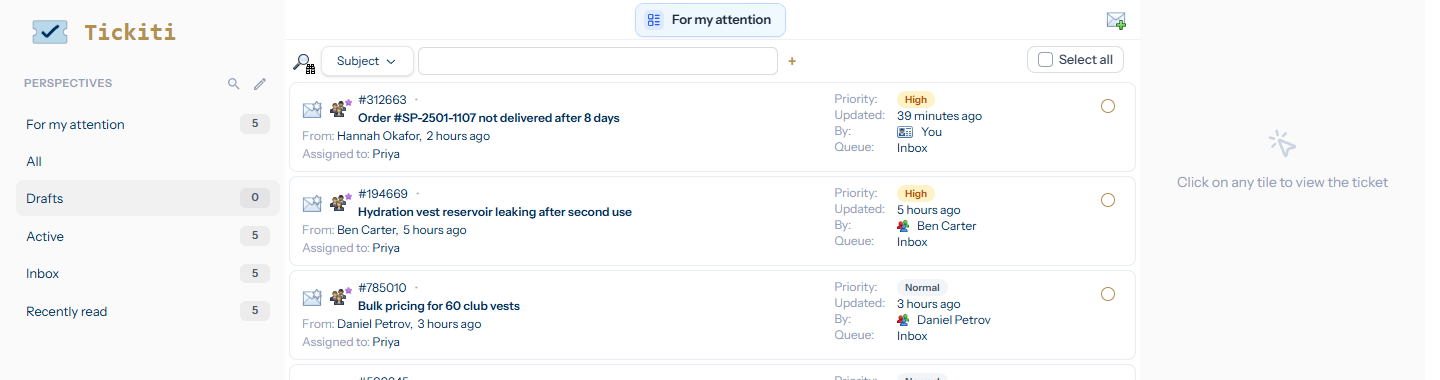
Click any draft to resume from where you left off. The composer reopens with your text, formatting and attachments intact, and the Manage panel shows whatever attribute changes you had made.
How autosave works
Tickiti autosaves the response body roughly two seconds after you stop typing, and again immediately when you change attributes (status, queue, assignee, priority, response type, on-hold-until). There is no save button: writing is saving.
The Send button waits for any pending save to finish before posting, so you cannot accidentally send a half-saved version. If you lose connectivity in the middle of a save, the next change you make picks up the unsaved content and tries again.
Discarding a draft
From inside the composer, click the × close button at the top of the editor toolbar. A small dialog asks you to confirm:
- Save — keeps the draft and navigates you home; you can come back to it from the Drafts perspective.
- Discard — deletes the draft. If the draft was a new (unsent) ticket, the ticket itself is deleted too.
- Cancel — dismisses the dialog and stays in the editor.
From the Drafts perspective you can also tick a draft’s selection circle and click Delete draft in the right-hand action panel.
The same draft on more than one tab
If you open the same ticket in two tabs — or you are typing on your laptop and pick the ticket up on a second device — Tickiti keeps the draft synchronised. When the autosave on Tab A reaches the server, Tab B reloads the draft so both tabs show the same content. Discarding from one tab clears the editor on the other.
This is multi-tab sync, not a lock. For two different users editing the same ticket at once, see Concurrent editing.
Drafts and the customer
Drafts are private. The customer never sees them, and other staff users only see drafts they have opened themselves — your colleagues’ Drafts perspectives are entirely separate from yours. A draft becomes a real response only when you press Send.