Cloning tickets
Sometimes one ticket needs to become two or more pieces of work tracked separately — a customer reports two unrelated faults in one email, a single conversation diverges into a follow-up project, or a final-stage response really belongs in its own ticket. Cloning creates a new ticket pre-filled from an existing one. The opposite operation — combining two tickets into one — is covered in Merging tickets.
How to clone
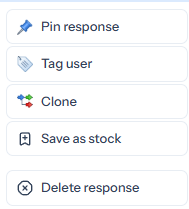
On the response you want to clone from, open the response actions (the kebab menu on the right) and choose Clone:
The Clone dialog opens. In its default quick mode it asks for two things:
- Subject for the new ticket. Tickiti pre-fills this with the original subject and a
[cloned]suffix; edit it to whatever describes the new piece of work. - Queue for the new ticket. You can pick any queue where you have manage rights (see Queue permissions); the source ticket’s own queue is offered first. Cloning is not available at all if you do not have manage rights on any queue.
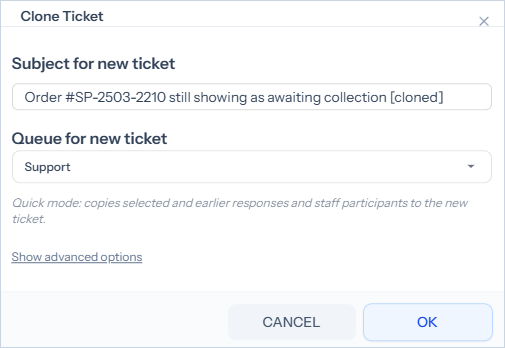
Quick mode then copies the selected response and every earlier response on the source ticket into the new one, brings staff participants across, and opens the new ticket so you can carry on. The customer is not added or notified in quick mode — the new ticket is an internal piece of work until you add the customer back yourself.
Advanced options
The dialog has a Show advanced options link that exposes a richer set of choices when the default behaviour is not what you want.
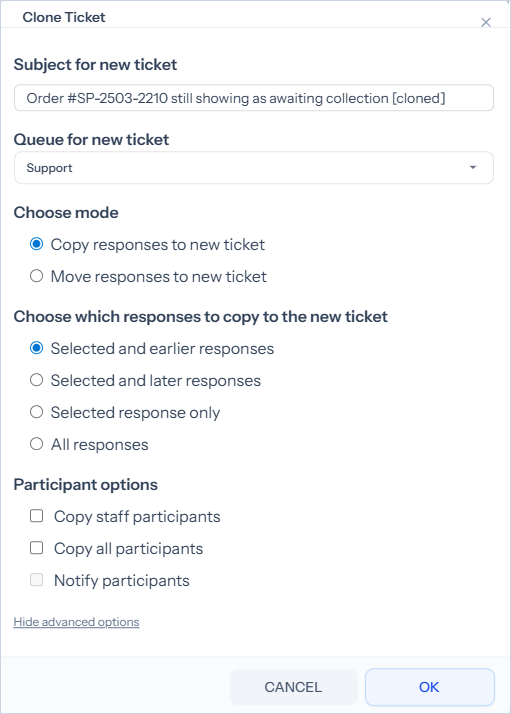
Copy or move
- Copy responses to new ticket — the source ticket keeps everything; the new ticket gets a copy. This is the default and is what quick mode does.
- Move responses to new ticket — the chosen responses (and their attachments and tags) are physically removed from the source ticket and end up only on the new one. Use this when a thread that has accumulated on one ticket really should have been on its own ticket from the start.
Which responses
- Selected and earlier responses (the quick-mode default) — the new ticket starts with the same history up to and including the response you cloned from.
- Selected and later responses — the new ticket gets the cloned response and everything that came after it on the source ticket. Useful when a ticket forks halfway through.
- Selected response only — just the one response.
- All responses — the new ticket is a full copy of the source. (Not available with Move.)
Participants
- Copy staff participants — on by default; brings your colleagues across.
- Copy all participants — brings the customer and any external participants across as well.
- Notify participants — only available when copying all participants; sends a notification to the new ticket. Off by default so cloning is silent unless you explicitly want the customer to know.
What the cross-reference looks like
Tickiti adds a system response to both tickets so the relationship is visible:
- The source ticket gets an internal staff response “Cloned to ticket #N” with a link to the new ticket.
- The new ticket opens with “Cloned from ticket #N” as its first response, again with a link.
- The new ticket also shows Cloned instead of Created in its details panel and on its card in the ticket list, so it is obvious at a glance that it did not start life as a fresh customer ticket.
Because both responses are real responses, they show up in audits and searches like any other.
Originator and visibility
The originator of the new ticket is set to you (the staff user who did the cloning), not the customer from the source ticket. This matters if you have perspectives that filter on originator, or if you rely on the originator field in reports. If you genuinely want the customer to be the originator of the new ticket, change it manually after cloning.
When to clone, when to merge
- Clone when one ticket needs to become two or more pieces of work that should be tracked independently going forward.
- Merge (see Merging tickets) when two tickets are about the same thing and should be one.