Ticket links
Tickets often need to refer to other tickets — a warranty claim and the original sale, a delivery delay and the underlying courier outage, a customer ticket and the internal task it spawned. Tickiti has two complementary mechanisms: linked tickets, an internal sidebar relationship that staff use to keep related cases joined up, and magic links, clickable cross-references you embed inside a response so the text reads naturally for every viewer.
Linking related tickets
From an open ticket, click the chain icon in the ticket header (next to the edit pencil):

A small dialog opens showing your 10 most recently opened tickets — there is no search bar, and that is intentional: the practical case for linking is that you have just been working on the related ticket, so it is at the top of the list. Tick the ones you want to link and click OK.
Already-linked tickets are filtered out of the list automatically. If the ticket you want to link is not in the list (for example you found out about it via search rather than by opening it), open it first; that brings it to the top of recent, and you can come back and link it from there.
Each link is symmetric: from each side, the linked partner appears in a LINKED bar just above the response thread, with the linked ticket’s number and subject. A green dot means the linked ticket is still open; a click takes you straight to it.
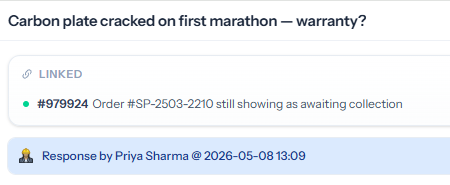
Links survive ticket closure, so older context stays reachable from the new ticket. To remove a link, click the unlink control on the entry in the LINKED bar.
Linked tickets are an internal feature. The linked-tickets sidebar is only rendered for staff — customers and external participants never see the relationship. If you want the customer to be aware of a related ticket, mention it in a response, and the right way to do that is a magic link.
Magic links
Magic links are clickable references you embed inside the body of a response, or paste into an external document. A sentence like “see ticket #500987 for the original conversation” turns into a working link. They are widely used; most cross-ticket references that an agent writes end up as a magic link rather than a sidebar link. Unlike the linked-tickets sidebar, magic links are visible inside the response itself, so customers and external participants see the cross-reference too — though they can only follow it through to the linked ticket if they are also a participant on that ticket.
Why magic links instead of pasting the URL
The same response is read by different audiences with different URLs:
- Staff use a URL based on the ticket number (
/ticket/501379). - Customers and external participants use a URL based on their own personal secure id token (
/ticket/<long-token>) — they cannot reach the staff URL.
If you paste a staff URL into a response that the customer can read, they get an access error when they click it. If you paste a customer’s secure URL into a response that other staff read, your colleagues end up looking at the customer view and miss the internal context.
A magic link side-steps the problem. It is stored as a placeholder — magic://501379; — and Tickiti rewrites it on render to the right URL and label for whoever is viewing. Staff see the staff URL with the responder’s name; the customer sees their own secure URL with neutral wording; everyone clicks the link that actually works for them.
Linking to a specific response
Magic links can target either a whole ticket or a specific response. The two forms are:
magic://<ticket-number>;— opens the linked ticket.magic://<ticket-number>/<response-id>;— opens the linked ticket and scrolls to the specific response. Useful when you are pointing at a particular message rather than the whole conversation.
How to copy a magic link
You rarely type the magic://... token yourself; you copy one and paste it. There are two common sources:
- From a ticket card in the ticket list — long-press (click and hold) on the ticket card to copy a magic link to the whole ticket. A regular click opens the ticket as normal, so the long-press is needed to get the “copy link” behaviour without navigating away. The same long-press pattern is used to copy the subject, From name, and assignee from a card.
- From within an open ticket — click the response title to copy a magic link to that specific response. Since the response title is not itself a navigation target, this is a regular click rather than a long-press.
In both cases the clipboard ends up with both a plain-text reference (e.g. #501379) and a properly-formatted magic link. Paste into the response composer on the originating ticket; the editor recognises the link and stores it as a magic:// placeholder. When you send, Tickiti turns the placeholder into a real link for each person who reads the response — one that shows a sensible label and points at a URL that works for them. A staff colleague sees the responder’s name and a staff URL that opens the linked ticket directly; the customer sees neutral wording (e.g. support) and their own personal URL; an external participant sees the same. Nobody has to think about which form of the link applies to them — the same magic placeholder produces the right link for everyone.
Using magic links outside Tickiti
The clipboard form of a magic link is a self-contained URL: it carries a long secure token that lets the holder open the linked ticket directly, without logging in. That makes magic links easy to paste into a document, a chat message, or another tool you use alongside Tickiti — the link just works when clicked.
Take care when passing a magic link outside Tickiti. The secure token is the credential. Anyone who ends up with the URL — whether or not they are a participant on the ticket, whether or not they work for your team — can open the ticket through it. Pasting the link into a shared document, a chat channel, or any tool with broader visibility than the ticket itself effectively widens access to the ticket. Magic links are useful as a clickable shorthand in your own working notes and in messages directed at a specific recipient, but treat the URL as a sensitive credential and only put it where the audience is appropriate.
When to link, when to magic-link
- Linked tickets (chain icon) — the two tickets are structurally related, and you want the relationship visible from both staff sidebars indefinitely. Customers do not see this.
- Magic link — you are mentioning another ticket inside a sentence, where a clickable reference is enough, and you may want the customer to be able to click through too.
Often you want both: link the tickets via the chain icon for permanent staff-side visibility, and add a magic link in the response that explains why.