Attachment rules
Tickiti accepts every attached file except those whose extension you have explicitly hard disallowed. Everything else is stored and downloadable; the choice to actually open a file is the staff member’s, made at download time. The rule library at Mail → Attachments in the admin user-menu dropdown is where you decide which extensions are flagged for that download-time review and which are blocked outright. Admin-only.
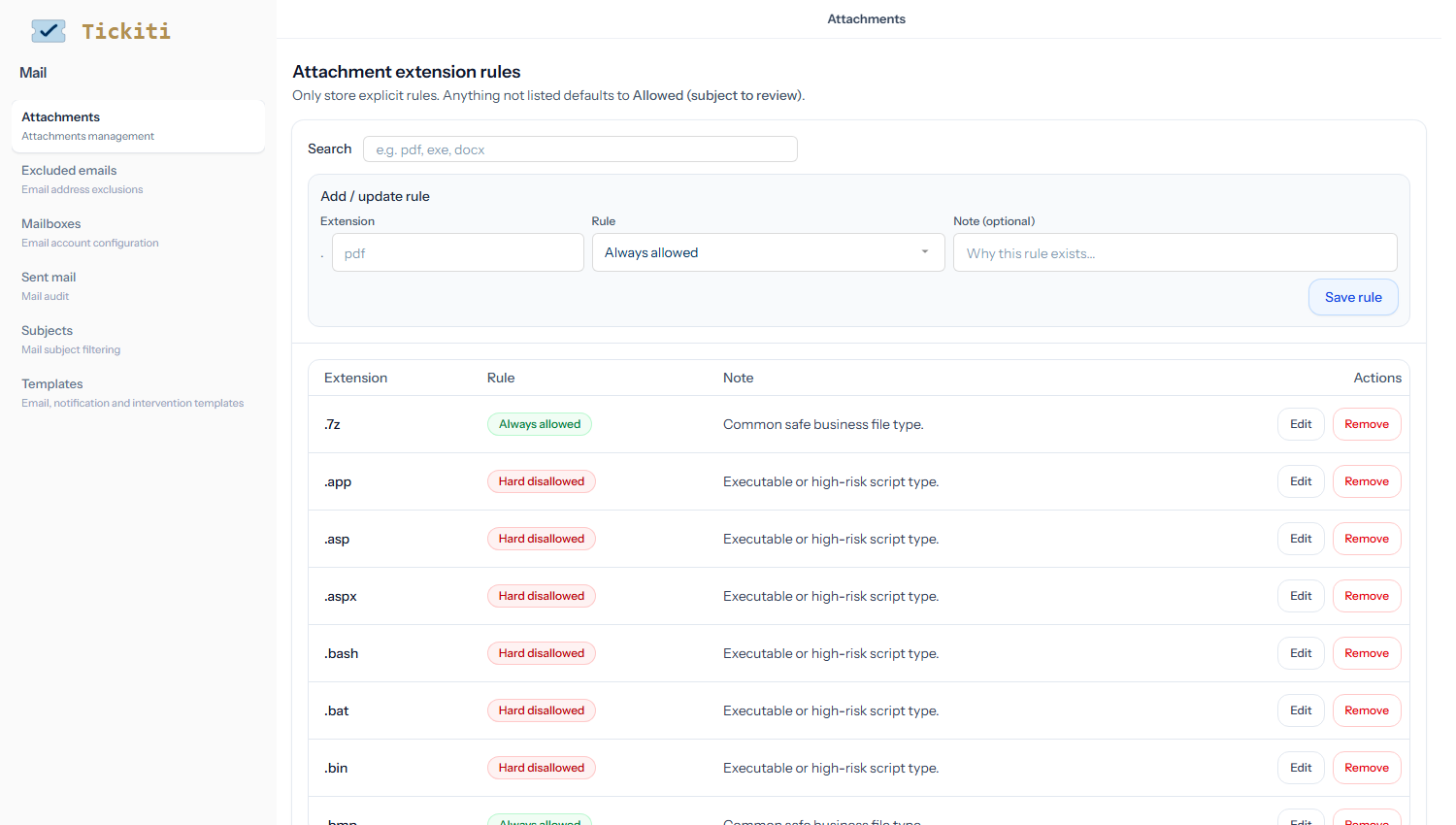
How rules work
The page header puts it succinctly: Only store explicit rules. Anything not listed defaults to Allowed (subject to review). Three possible outcomes for any attached file:
- Always allowed — explicit rule, the extension is accepted with no challenges. Used for safe document types you actively expect to receive.
- Hard disallowed — explicit rule, the extension is rejected outright. Used for executables, scripts, and other high-risk types.
- No rule (default) — Allowed (subject to review). The attachment goes through but staff must explicitly confirm before downloading.
Tickiti only stores rules in the first two states; the “review” behaviour is the implicit default for everything else. The review prompt is described from the staff side in Attachments and files.
The default rule set
Tickiti seeds a sensible starter list. It is permissive about common document and image types and conservative about anything that can execute code:
- Always allowed —
pdf,doc,docx,xls,xlsx,ppt,pptx,txt,rtf,csv,jpg,jpeg,png,gif,webp,bmp,svg,zip,7z. - Hard disallowed — executables, scripts and macro-enabled office formats:
exe,msi,bat,cmd,com,scr,ps1,app,sh,bash,js,cjs,mjs,vbs,wsf,jar,php,php3,php4,php5,phtml,jsp,asp,aspx,bin,dll,docm,xlsm,pptm,lnk,reg,run,sys.
The macro-enabled Office formats (docm, xlsm, pptm) are blocked out of the box.
Adding or updating a rule
Use the Add / update rule form near the top of the page:
- Type the extension (without the dot) into the Extension field.
- Pick Always allowed or Hard disallowed from the Rule dropdown.
- Optionally add a Note explaining the choice (e.g. Common safe business file type, or Blocked after phishing campaign 2026-01). The note helps the next admin understand why the rule exists.
- Click Save rule. If a rule already exists for that extension, it is overwritten.
Editing or removing
Each row has Edit and Remove buttons. Edit pulls the rule back into the form. Remove deletes the explicit rule and reverts that extension to the default Allowed (subject to review) — it does not hard-block the extension.
If you really want to block a file type the easiest way is an explicit Hard disallowed rule rather than relying on the review prompt to discourage downloads.
Practical advice
- Less is more. Most teams use the seeded set unchanged. Only add rules when you have a real signal: a customer routinely sends a niche file type you want to fast-track, or a phishing attempt arrived in a format you want to permanently block.
- Document your bans. A note like Blocked after phishing campaign 2026-01 turns a mystery rule into useful institutional memory. The Note column shows on every row.
- Watch for ambiguous extensions.
html,iso,img— legitimate-sounding but riskier than they look. They default to Allowed (subject to review), which is reasonable; tighten to Hard disallowed if your team has no reason to handle them.