Tagging
Tagging puts a ticket on a colleague’s For my attention perspective so they will look at it — it is about attention. You tag a colleague by typing @<user> directly into the body of a response. For cataloguing a ticket by topic so it can be found later, see Hashtags.
Tagging a colleague
The common way to tag a colleague is to type @<user> directly in the response while you are writing it:
Hi
@frank— can you have a look at the photos? Looks like a real defect to me.
When you send, Tickiti scans the body, resolves each @<user> to a staff member, adds them as a participant if they are not already on the ticket, and records the tag against the response. The tagged colleague is notified and the ticket lands in their For my attention perspective — one of the built-in attention reasons is “tagged on a response that has not been acknowledged”.
Rules for forming an @-tag
- The
@must follow whitespace, punctuation, or the start of the text.frank@team.examplein the middle of a sentence is not a tag — tagging requires a clean word boundary before the@. - The character after the
@cannot be a digit.@1frankis not a tag. - Tag characters can be letters, digits,
.or@. This lets you tag by email when names collide —@frank.smithor@frank@team.exampleboth work. - Matching is a prefix match against the staff user’s email and name —
@framatches every staff user whose email or name starts with “fra”. - Tags only resolve to staff. You cannot tag a customer or external participant.
- Each tag must resolve to exactly one staff user. If
@framatches two people Tickiti will not guess — it prompts you (see below).
If a tag is ambiguous or unknown
If a tag matches no staff user, or matches more than one (a collision), the Send button shows a Tag issues dialog before posting. It lists each problem tag and either says has no matches or shows the candidate emails so you can refine the tag. You can Cancel back to the editor to fix the spelling or extend the tag enough to disambiguate, or Ignore to send the response with those tokens left as plain text and not turned into tags.
Tagging an existing response
If a response is already posted and you realise a colleague needs to see it, you can tag them after the fact. Open the response actions (the kebab menu on the right of the response) and choose Tag user:
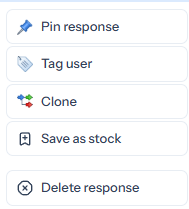
The dialog lets you select one or more staff colleagues from a list and add an optional tag comment — a short note explaining why you are pulling them in (“can you confirm the warranty terms?”). The colleagues are notified, the ticket appears in their For my attention perspective, and the comment is shown alongside the tag indicator.
This route is the right one when the response was sent earlier and you only now want a colleague to look. The inline @<user> form is the right one while you are writing.
Acknowledging a tag
A response that has tagged you appears with an Acknowledge button in the response header (the tag block above the response body). Once you have read the message, click it; the unread-tag attention reason is removed and the ticket leaves your For my attention view unless something else is keeping it there. See Responding to tickets for how this fits with the rest of the response workflow.