Templates
Tickiti uses templates for every email it sends and every in-app notification. The template library lives at Mail → Templates in the admin user-menu dropdown.
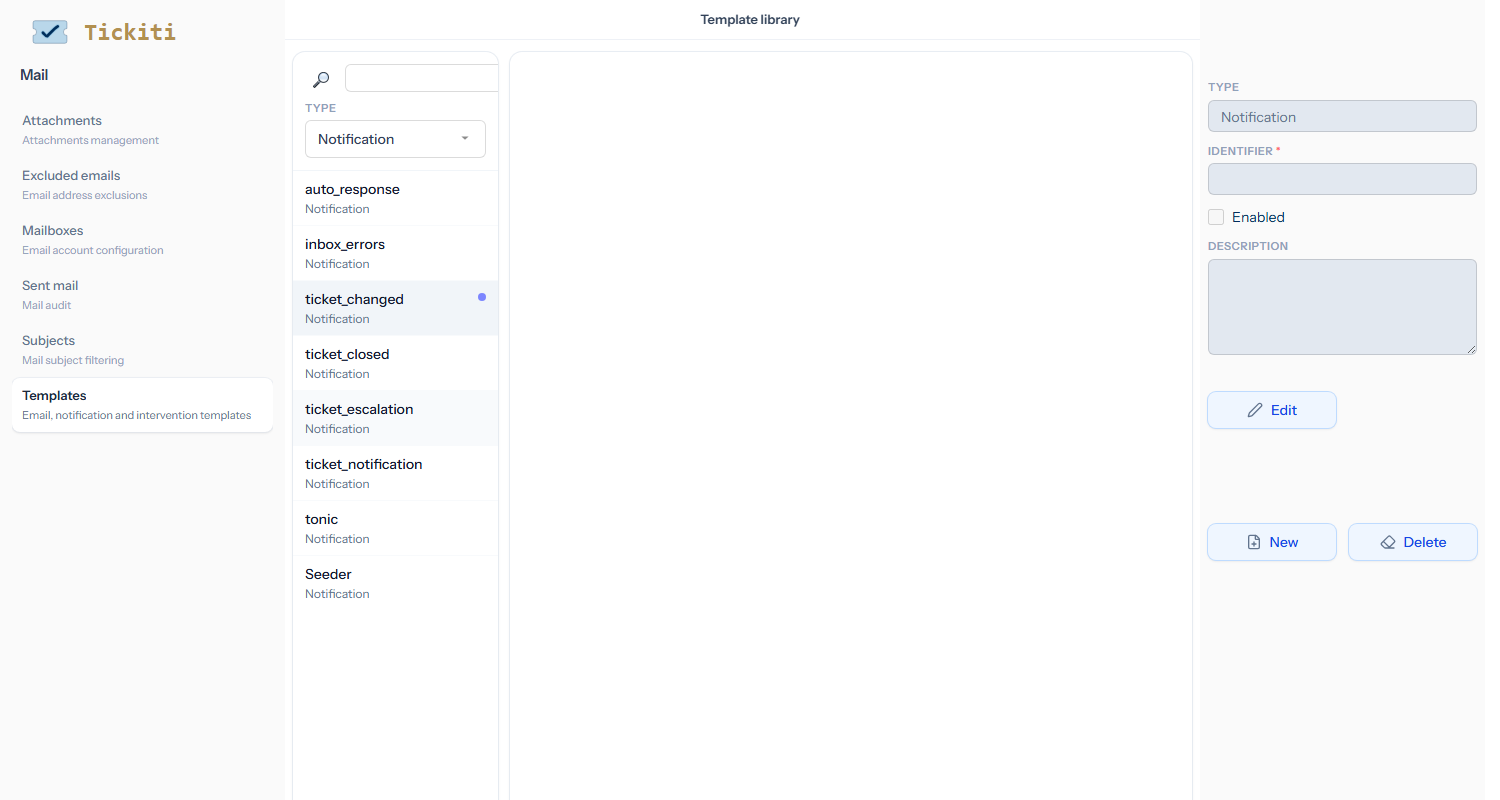
Template types
The library covers three template types:
- Email — transactional emails sent to a specific recipient. Examples: password_reset, verify_email, user_welcome, confirm_email_public_access.
- Notification — ticket-event templates that produce an email or in-app notification to participants when a ticket changes. Examples: ticket_changed, ticket_closed, ticket_escalation, ticket_notification, inbox_errors, auto_response, tonic (the leaner format for staff with Tonic notifications enabled).
- Intervention — templates used by the interventions workflow.
Stock responses (reusable reply templates for the response composer) and FAQs (entries shown beside the customer support form) are managed on their own admin pages, not here. See Stock responses for the former.
The library page
The left pane lists all templates with a search box and a Type filter. Click a template to select it. The right pane shows the template metadata (type, identifier, enabled flag, description) and three action buttons: Edit opens the body editor; New creates a new template; Delete removes the selected one. Creating new templates is uncommon — you usually only need to tweak the existing ones.
Editing a template
Click Edit to open the editor. Each template has a subject (for email/notification types) and a body (rich-text). Templates support placeholders like {{ticket_number}}, {{subject}}, {{subject_info}}, {{preview}} — these are replaced with the real values at render time. The available placeholders depend on the template type; the legend on the editor lists what is supported.
Make a change, hit Save, and your next ticket event (or whatever the template handles) uses the new wording. There is no separate publish step.
Test what you write. HTML in email is notoriously inconsistent — the same markup can render quite differently in Gmail, Outlook, Apple Mail and various mobile clients. After any non-trivial edit, trigger the template (post a public response, close a ticket, etc.) and check the result in the email clients your customers actually use. Anything more elaborate than basic formatting (custom CSS, complex tables, web fonts) is liable to look wrong somewhere; keep the markup simple unless you have the appetite to test across clients.
The most-edited templates
- ticket_changed — the notification a customer receives when there is an update on their ticket. The most visible piece of writing in Tickiti; tune to match your tone of voice.
- ticket_closed — the closing message a customer receives when their ticket is closed. A good place to include a thank-you and a feedback link.
- user_welcome — the email a new staff user receives when their account is created. Personalise with onboarding instructions or a link to your team handbook.
- ticket_escalation — the email an agent receives when one of their tickets has waited too long. Keep brief and action-oriented.
- password_reset, verify_email, confirm_email_public_access — account/security transactional emails. Tweak the wording but keep the action button prominent.
Disabling a template
Each template has an Enabled flag. Disabling stops Tickiti from sending it without removing the template — useful for things like auto_response (off by default) that you might enable temporarily during a campaign, or for switching off a notification while you tune its wording.