Attachments and files
Customers regularly send photos, screenshots, logs, invoices and order confirmations; staff in turn might attach replacement-shipping labels, repair instructions or returns forms. This article covers how to attach, view and manage files on a ticket from the staff side. For the customer’s view of attachments see Customer attachments.
Attaching while responding
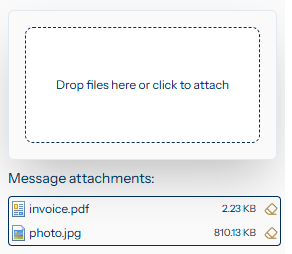
The response composer keeps attachments behind the Attach tab at the bottom of the side panel. Clicking the tab reveals a Drop files here or click to attach dropzone — drag files from your file manager onto it, or click to open a file picker. Added files appear in the attachments list below the dropzone with their name and size; click the remove icon on a row to take a file back off before sending.
Pasted images (e.g. from a screenshot tool, or with Ctrl/Cmd + V over the response body) appear inline in the editor at your cursor — the same way they would in any rich-text editor — and travel with the response when you send.
Large file uploads are supported robustly: a single attachment up to 50 MB by default, and your administrator can raise or lower that limit under System settings. Once a response has been sent, its attachments are part of the response permanently — you cannot detach an individual file without deleting the whole response (see Sensitive content below).
Viewing attachments
A response with attachments shows file chips below the response body. Inline images appear in the response body itself, so they do not show as separate chips — the chips are for the proper file attachments. Click a chip to download the file; whether it previews in the browser or downloads outright depends on the file type and your browser’s built-in viewer.
Re-using inline images
Tickiti stores every image and file by content hash (SHA-256). If you paste the same screenshot in two different responses, only one copy lives on disk — you do not get penalised on storage for repeating yourself across updates. The same applies to file attachments: identical files share a single on-disk copy.
Type rules
Every file extension falls into one of three categories: always allowed (downloads silently), requires review (the user must confirm before downloading) and hard blocked (cannot be downloaded). Common documents and images are allowed, executables and scripts are typically blocked, and unfamiliar extensions default to review. The configuration is documented in Attachment rules.
Storage quota
Each Tickiti system has a total storage allowance (in megabytes) tied to its licence. Storage usage is checked daily. If the allowance is exceeded the situation needs to be corrected for the system to keep functioning normally — Tickiti raises a warning ticket immediately and follows up if usage stays over the limit. There is a grace period of several days; if the situation has not been resolved by then, the system enters a restricted mode until usage is brought back under the allowance.
Administrators can keep an eye on usage and reclaim space from Settings → Disk storage, which offers two cleanup tools:
- Delete orphaned attachments — files no longer referenced by any ticket. Safe to run any time.
- Delete attachments on closed tickets older than N days — permanent removal of files from old closed tickets. The tickets themselves stay; only the attachments are wiped, and they will no longer be downloadable from those tickets.
Apart from these two manual operations, attachments are kept indefinitely. Deleting a response (see below) does not delete the file from disk.
Sensitive content
If a customer attaches something they should not have (a card number on a screenshot, say), the response’s kebab menu offers Delete response. Be aware of what this actually does:
- The response is soft-deleted — it disappears from the live ticket view but the row remains in the database for the audit trail.
- The HTML body and the attachment records are not erased.
- The attachment URL still serves the file to anyone who already has it. Deleting the response hides it from the ticket page, but does not remove the bytes from disk.
For genuinely sensitive material that needs to be wiped — not just hidden — ask your system administrator to remove the file from disk after deleting the response. Until that has been done, treat the original attachment URL as still live.
For routine cases where you only need to stop the customer seeing the response (an internal note posted to the wrong type, say), Delete response is fine on its own — the attachment URL is not exposed in any normal user flow once the response is gone from the ticket page.