Logging in
This article walks through signing in to Tickiti for the first time and what to do if you have forgotten your password.
Where to log in
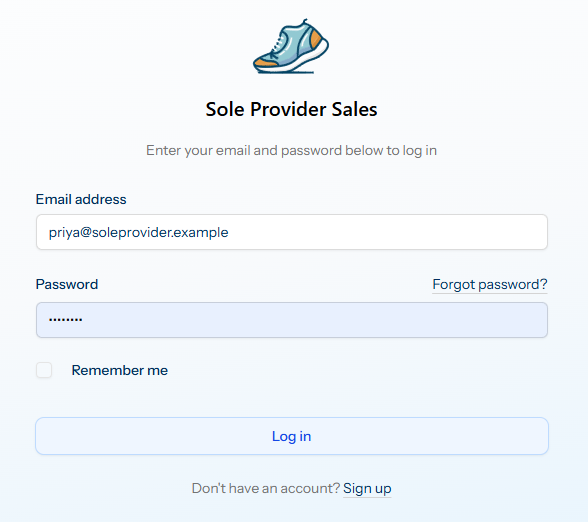
Your team’s Tickiti site lives at the address your administrator shares with you. By default this is something like your-company.tickiti.com, or a custom domain such as tickets.your-company.com if your team has set one up. Open that link in any modern browser and you’ll land on the login screen:
First-time sign-in
The first time you use Tickiti you’ll receive a welcome email with a Set Your Password link. The email arrives in one of two ways:
- An administrator added you to an existing Tickiti site, and Tickiti emailed you the link.
- You signed up for a new Tickiti site of your own through
tickiti.com, and Tickiti emailed you the link.
Either way: click that link, choose a password, and you’ll be logged in straight away.
The link expires after seven days. If it has already expired, ask your administrator to resend it, or use the Forgot password? link on the login page.
Signing in
- Enter the email address you registered with — at Sole Provider Inc, that would be something like
priya@sole-provider.example. - Enter your password.
- Tick Remember me if you want Tickiti to keep you signed in on this device. Leave it unticked on shared computers.
- Click Log in.
If your credentials are correct, Tickiti will take you straight to the ticket browser. New staff users land on the For My Attention perspective by default.
Forgot your password
- Click Forgot password? on the login screen.
- Enter your email address and submit the form.
- Tickiti emails you a reset link. Open it within 60 minutes and choose a new password.
If the email does not arrive, check your spam folder, then ask your administrator to confirm the email address on your account.
If sign-in fails
- “These credentials do not match our records.” — the email or password is wrong. Try again, or use Forgot password.
- The page just reloads with no error — usually a stale browser session. Open a private window and try once more.
- Your account is locked — too many failed attempts in a short time. Wait a minute and try again, or contact your administrator.
Signing out
To sign out, open the user menu in the bottom-left corner of the screen and choose Sign out. On a shared computer, sign out as soon as you are done.