Raise a support ticket
If a company you deal with uses Tickiti for their customer support, they will normally publish a public support portal where you can raise a ticket without needing an account. You are most likely reading this because you have already arrived on that customer portal and followed its help link — but if not, just open the URL the company has shared with you (typically on their website or in an email) to get started.
The screenshots below use Sole Provider Inc as an example. The page your supplier uses will look similar.
1. The support page
In this example it lives at https://support.sole-provider.example/support:
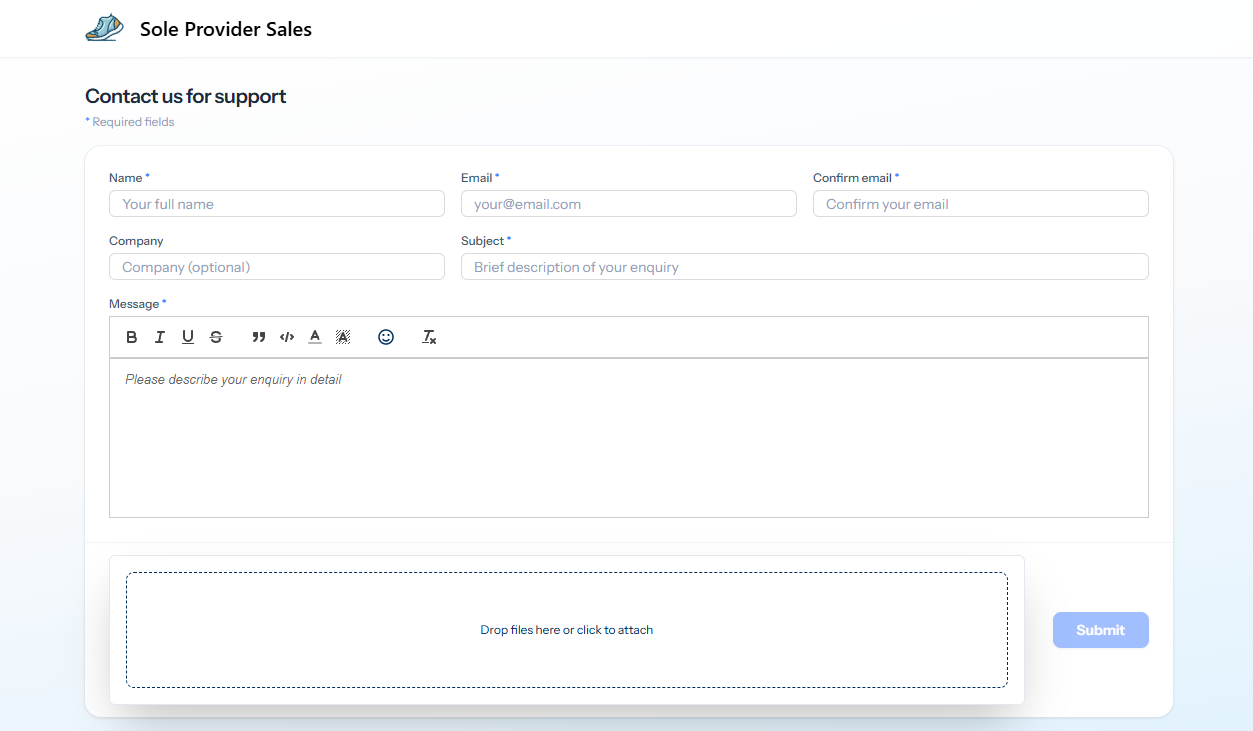
Some help pages also include a panel of frequently asked questions on the left — if you see one, scan through it first; your question may already be answered there. Otherwise, head to the form on the right.
2. Fill in the form
Required fields are marked with a small blue asterisk:
- Name — your full name. The support team will use this to address you in their reply.
- Email and Confirm email — the address the support team should use to contact you. All updates are sent here, so type carefully.
- Company (optional) — your business or club name, if relevant. Helpful for trade or club orders.
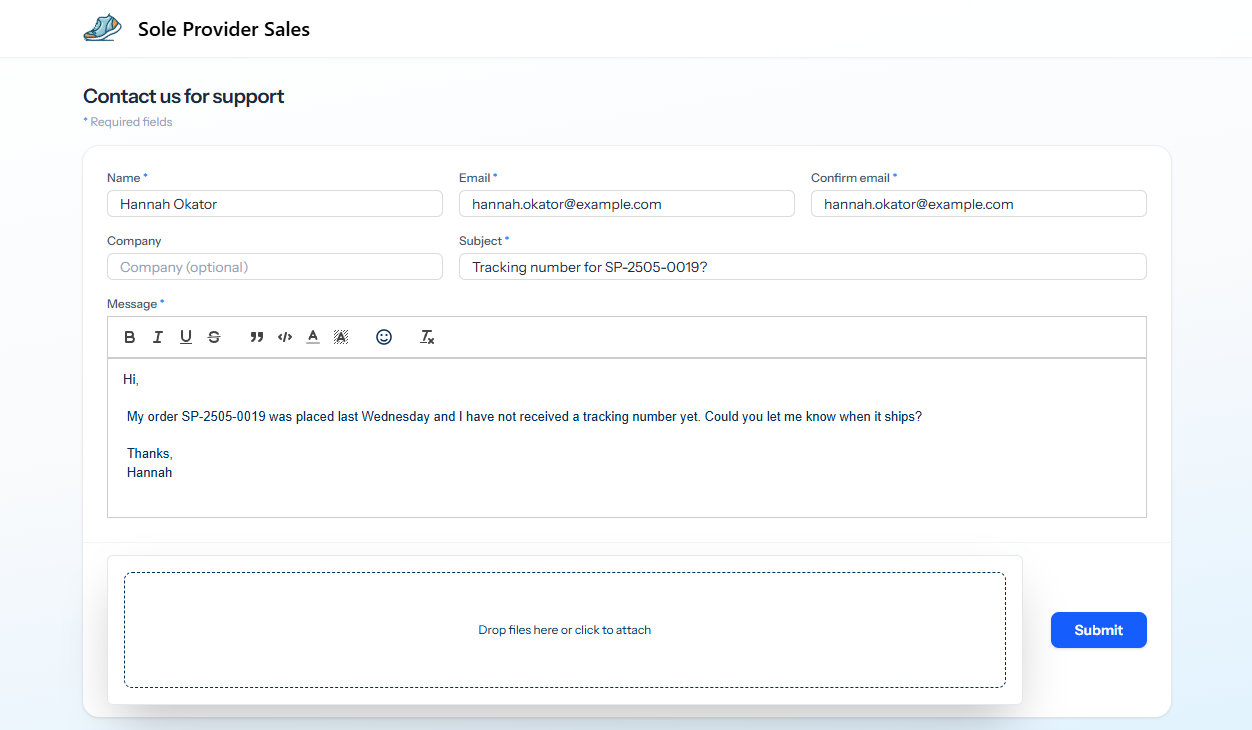
- Subject — a short description, e.g. “Tracking number for SP-2505-0019?”.
- Message — the details of your enquiry. Include order numbers, photos, dates — anything the support team needs to help you. The editor toolbar lets you format text or add bullets if it helps you describe the situation.
A complete enquiry might look like this:
3. Add attachments (optional)
If a photo or document would help, drop one or more files into the dashed Drop files here or click to attach area at the bottom of the form. There is a separate article on Attachments covering allowed file types and size limits.
4. Submit
Press Submit. The page will swap to a confirmation screen with your ticket number:
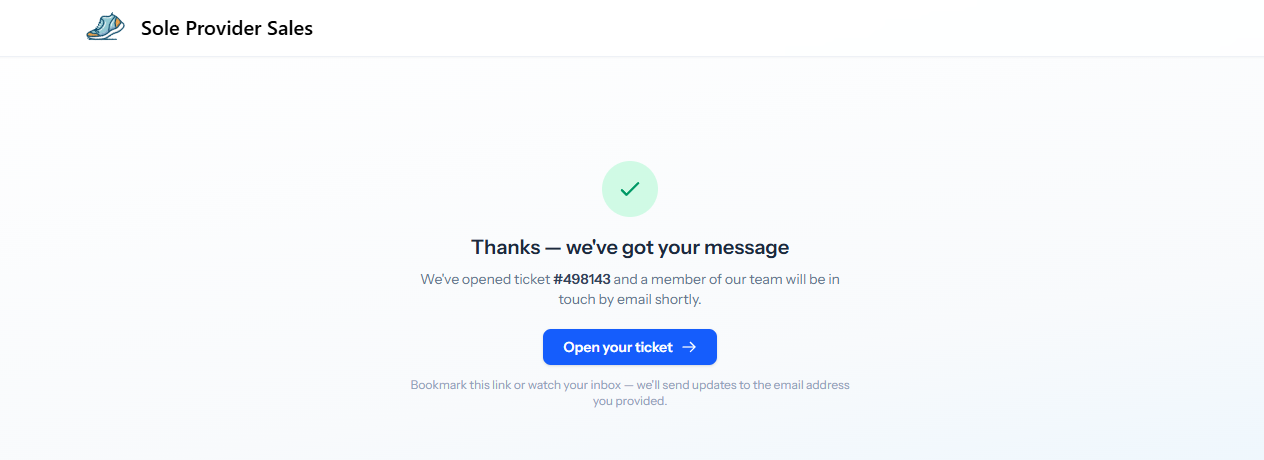
Two things happen at this point:
- An email lands in the inbox you supplied, confirming the ticket. It contains a direct link to your ticket — bookmark it or keep the email if you would like to come back to the ticket later.
- The support team is notified and starts work. Response times depend on the team’s coverage and the urgency of your request.
What about getting an account?
You do not need one to raise a ticket. If you would like to see all your tickets in one place — useful if you have raised several — you can register an account afterwards. See Tracking your tickets.