Managing perspectives
Using perspectives in the Staff Guide covers the day-to-day of switching, pinning and unpinning. This article covers the supervisor side — creating, sharing, and tuning perspectives so the team has a useful set to work from.
Where to manage perspectives
The dedicated admin page is Settings → Perspectives. It lists every perspective in the system — built-in, shared and personal — with edit, delete and reorder controls. This is the primary place to create new shared perspectives, retire old ones, and tune the team’s set.
There is also an in-panel quick path for personal perspectives only: in the perspectives panel on the left, click the pencil to enter edit mode, then the + at the bottom and Add new. Use this when you are spinning up a one-off view for yourself; for anything you intend to share, go via Settings.
The Add perspective dialog
Both paths open the same dialog:
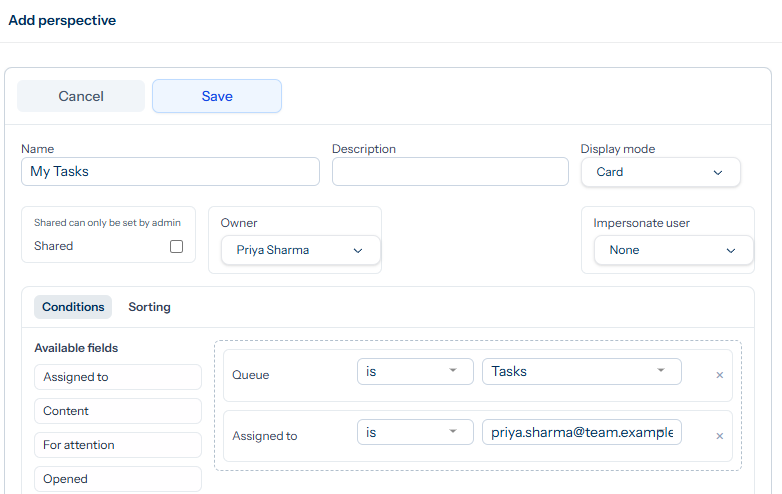
The dialog has the following fields:
- Name — how it appears in the panel. Keep it short.
- Description — longer explanation of what the perspective shows. Visible on hover.
- Display mode — Card (the standard ticket-list view) or List (a denser one-line-per-ticket layout).
- Owner — who owns the perspective. Defaults to you.
- Shared — if ticked, the perspective is visible to all staff. Only admins can tick this; the field shows a Shared can only be set by admin note for everyone else.
- Impersonate user — run the user-centric parts of the perspective query as that user. See Monitoring team workload for the supervisor pattern this enables.
- Show in CRM — surface this perspective in the CRM-context view (only relevant on installs that integrate with one).
Conditions — the filter
The Conditions tab decides which tickets the perspective includes. The available fields are pill buttons on the left; click a pill or drag it onto the drop zone on the right to add it as a condition. Each condition gets a small operator selector (is, is not, contains) and a value input appropriate to the field.
The condition fields you can use are:
- Status, Priority, Queue, Assigned to — the structured ticket attributes.
- Originator, Subject, Content — text fields on the ticket and its responses.
- For attention, Opened, Retained, Participating — per-user yes/no flags. For attention is the For my attention dynamic flag for the viewing user (or, when impersonation is in play, for the impersonated user).
- Watchlist — tickets in a particular watchlist.
How conditions combine
Multiple conditions on the same field are combined with OR; conditions across different fields are combined with AND. So:
- Two Priority conditions — Urgent and High — mean “priority is Urgent or High”.
- Adding a Status is Open condition makes it “(priority is Urgent or High) and status is Open”.
This matches the search bar’s rules — same field is alternative, different field is narrowing.
Sorting
The Sorting tab decides the order tickets appear within the perspective. Drag fields onto the order list and pick ascending or descending. Available sort fields include the condition fields plus a few that only make sense for sorting: Updated at, Created at, Opened at, On hold until and Watchlist position. A common combination is For attention descending, then Priority descending, then Updated at ascending so the oldest tickets within a band float to the top.
Shared versus personal
A shared perspective appears in everyone’s perspective library, ready for them to pin to their own panel. The data is still per-user (counts and impersonation rules apply per-viewer); the definition is what is shared.
A personal perspective is only visible to its owner. Use these for one-off views or experiments before you promote them to shared. Promotion is done by an administrator ticking the Shared box; non-admins can only edit their own personal perspectives.
Curating the shared set
- Less is more. A shared library of 30 perspectives is harder to navigate than a sharp set of 6. Prune ones that no one uses.
- Name them with a verb or noun phrase, not jargon. Stale support tickets reads better than SUP-stale-4h.
- Document each one in the Description field so a new starter understands what it shows without asking.
- Let people know when you change a shared perspective. Counts and lists can shift visibly across the team.
Editing and deleting
From Settings → Perspectives, find the perspective in the list and click into it. Owners and admins see edit and delete controls; others see read-only details. Deleting a shared perspective removes it from everyone’s panels, so check with the team first if it has been in active use.