Stock responses
Some replies are sent over and over: a request for photos in a warranty claim, a returns-policy summary, a hand-off paragraph when a ticket bounces to another team. Stock responses are reusable reply templates — you write the body once (text and inline images both work) and any colleague can drop it into the response composer with two clicks.
Inserting a stock response while writing
While composing a reply, click the library icon in the editor toolbar (the stack-of-books glyph). The picker opens with a list of stock responses on the left and a preview pane on the right:
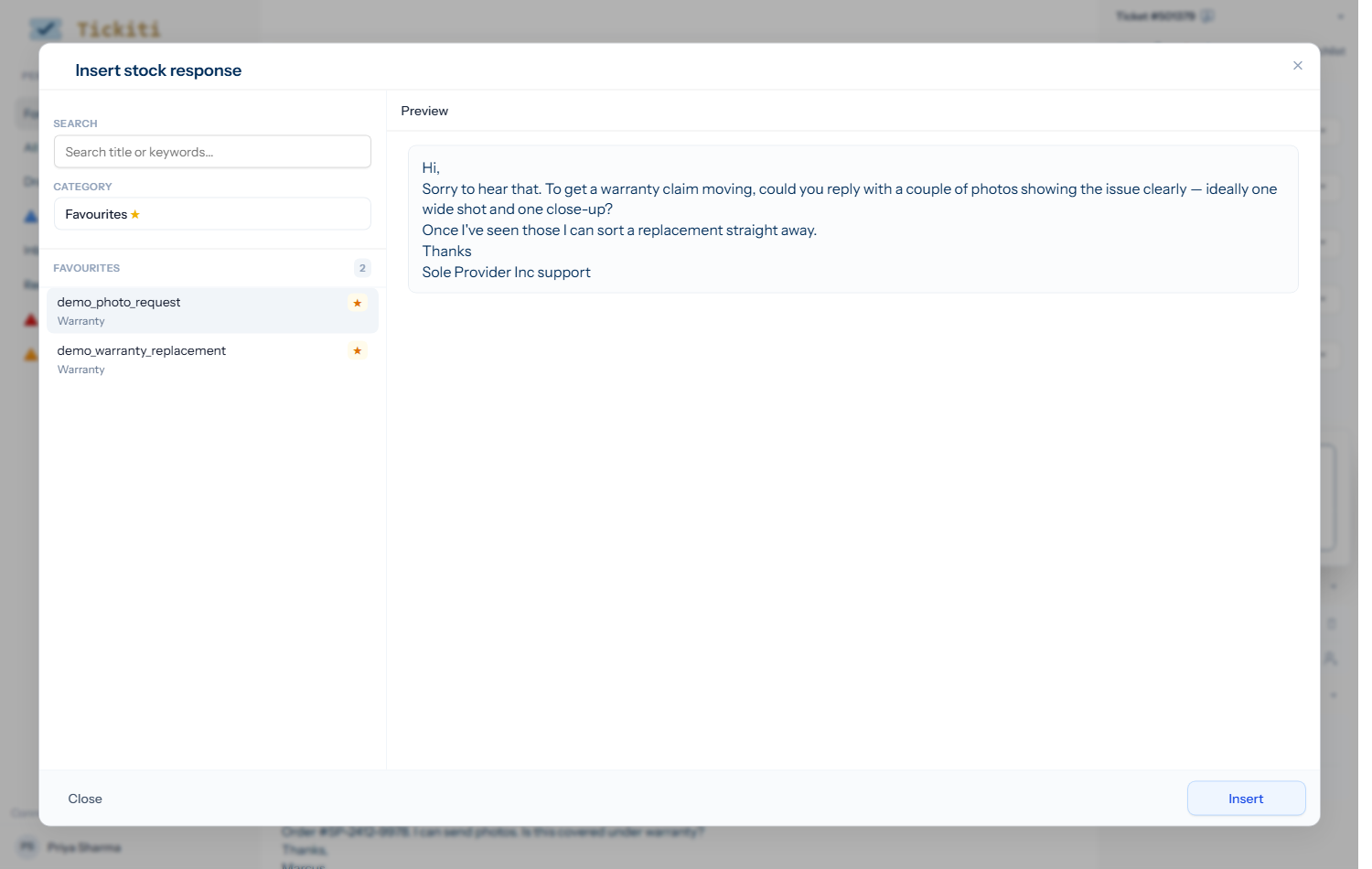
Type into Search to filter by title or keyword, switch Category to look at a different group, click an entry in the list to populate the preview, then click Insert. The body lands at your cursor position in the response composer; you can edit it before sending — tweak the salutation, customise the order reference, and so on.
The Favourites section at the top of the picker combines two things:
- Your personal favourites. Manual — you set these yourself. Open any entry under Settings → Stock responses and click the Favourite star next to the title; the entry then sits at the top of your picker. Tickiti also offers to add a response to your favourites after you have used it a few times.
- Team favourites. Automatic — Tickiti fills any remaining slots with the most-used stock responses across the whole team, so a new colleague sees what everyone else reaches for without having to favourite anything themselves.
Saving a response as stock
If you have just written a reply that you know you will send again, you can promote it to a stock response without leaving the ticket. Open the response actions (the kebab menu on the right of the response) and choose Save as stock. The dialog asks for one thing:
- Topic — a short name that you and colleagues will recognise, e.g.
warranty replacement. This is how the response is identified in the picker.
The body of the response (text and inline images) is captured automatically — the preview below the topic field shows exactly what will be saved. Two buttons finish the job:
- Save creates the entry with just the topic and the body. Category, keywords and subject are left blank for now; the entry still works, it just lives under the Uncategorised heading until you give it a home.
- Save & refine does the same, then jumps straight to the entry in the library so you can pick a category, add search keywords, set an optional default subject, and tidy the body if needed.
The original response on the ticket is unaffected.
Managing the library
Any staff member can browse, edit and retire entries in the library from Settings → Stock responses. The library page lists every stock response with its topic, category, subject and a usage count. It is also where you set up an entry properly after a quick Save from the ticket page, or open one to favourite it. Use it to:
- Rename or rewrite an entry that has drifted out of date.
- Disable an entry (it stays in the database but no longer shows in the picker).
- Spot duplicates — two entries with similar text and overlapping keywords usually means colleagues did not realise the first one existed.
What makes a good stock response
- Information requests you send routinely — order references, photos, dates.
- Policy snippets — warranty terms, returns timelines, refund process.
- Hand-off paragraphs — I am passing this to our trade team — they will be in touch directly.
Avoid stock responses for the closing message of a typical exchange — that one really should be written for the customer in front of you. The right test is whether the wording would be identical regardless of who you are replying to.