Using the demo
When you start a Tickiti trial your site opens in demo mode. Demo mode populates your tenant with a handful of example tickets, watchlists, perspectives, and team-mates so you can click around a realistic system before going live with real tickets.
What demo mode looks like
You’ll know you’re in demo mode because every screen shows a DEMO MODE banner with a tour panel on top. The first panel welcomes you and explains the lay of the land:
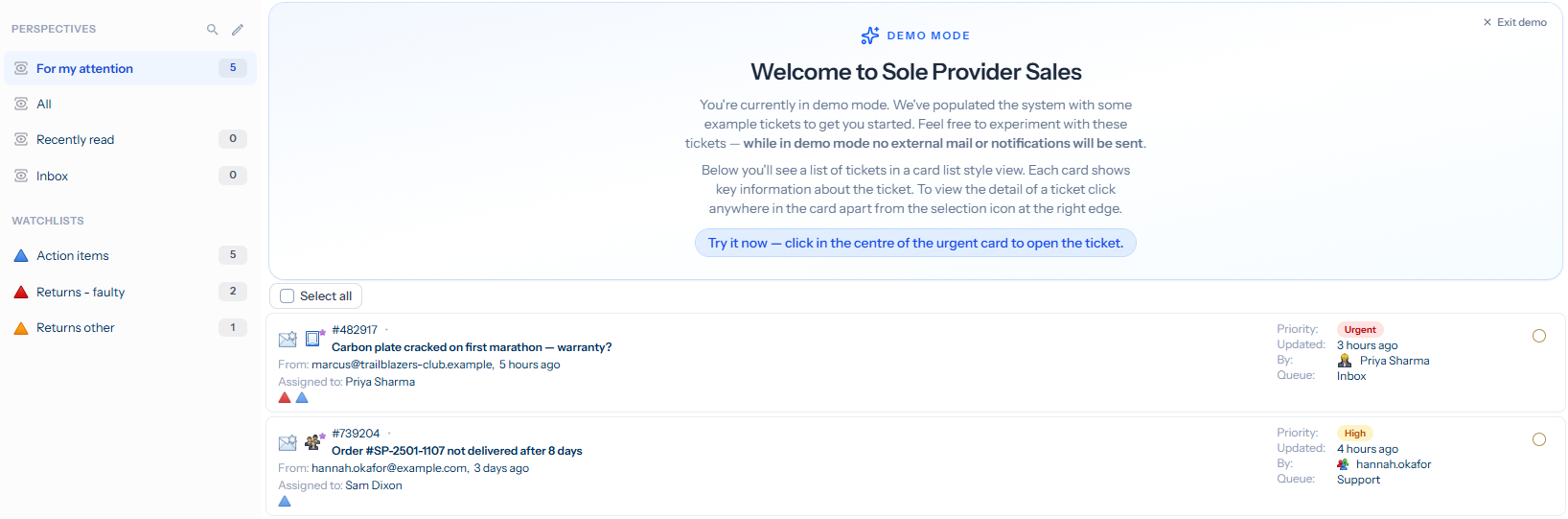
The tour walks you through the main tasks — opening a ticket, drafting a response, choosing a response type, posting it, managing ticket attributes, creating a new ticket, using stock responses, linking tickets, switching list mode, retaining and muting, and finally perspectives and watchlists. Each panel highlights the next thing to click; you can read it, do the action, and move on at your own pace.
No external mail or notifications
While demo mode is on, Tickiti will not send any outbound email or notifications. You can post responses to the demo tickets, change statuses, reassign — none of it leaves the system. This is so you can experiment with confidence; the customers in the demo are not real, and no message will reach anyone.
This applies to the whole tenant for as long as demo mode is on, not just to the demo tickets. The moment you exit demo mode, normal sending resumes.
Navigating the tour
- Follow the prompt. Each panel tells you what to click next — the demo advances when you do it.
- Move around freely. You don’t have to stay on the prompted page. Click into perspectives, open other tickets, edit attributes — the tour picks back up where you left off the next time you land on the right screen.
- Resume. If you navigate away and want to jump back to the current step, click the panel and Tickiti takes you to the page that step plays out on.
Restart the demo
If you want to start the tour again from the beginning, click Restart demo on the panel. Tickiti will:
- Remove any changes you made to the demo tickets, watchlists and stock responses.
- Reseed a fresh, untouched copy of the demo content.
- Reset your tour progress so you land on the welcome panel again.
Exit demo mode
When you’ve seen enough and want to use Tickiti for real work, click Exit demo on the panel. Tickiti asks you to confirm, then:
- Deletes the demo tickets, watchlists, demo team-mates and demo stock responses.
- Turns off the demo banner everywhere in the tenant.
- Re-enables outbound email and notifications.
Exit is one-way. Once demo mode is off, the demo content is gone and the banner doesn’t come back — you’re looking at a clean Tickiti site, ready for your first real ticket.